
Do you need a mail service that truly handles your exchanges well? There is a wide range of free email providers on the market. While many of us have chosen Gmail, Proton Mail, or Infomaniak Mail, other solutions are just as interesting. Among them, Microsoft Corporation’s Outlook stands out. How does this mailbox fare in 2026? We share our opinion in this article.
We send more than 361 billion emails daily worldwide. That’s to say we all need webmail services! Created in 1996, Microsoft Outlook has gone by several names: Hotmail, MSN Hotmail, Windows Live Hotmail… This free service also offers a paid plan (for a professional or advanced user). Today, it can be used on any device, in web, Windows, iOS or Android versions. Like its Gmail rival, Outlook provides access to a number of well-known office tools. Here is our opinion on this renowned mailbox right now.
- storage15 GB of storage
- securityNative encryption optional
- alternate_emailNo custom domain
- smartphoneiOS, Android apps
- push_pinJurisdiction USA
Key Points to Remember
- Outlook.com, the successor to Hotmail, offers a free plan: 15 GB mailbox and 5 GB of OneDrive, with advertisements that Microsoft 365 removes from 20 € per year.
- The interface is clear and sorting is very efficient, with folders, categories and automatic rules, even though customization remains limited.
- Copilot is reserved for Personal, Family and Premium offers, and to the sole holder of the account.
- Microsoft remains subject to the Cloud Act: for sensitive exchanges, consider Swiss mail services like Infomaniak or Proton Mail.
- Compared to Gmail, Outlook.com mainly appeals to those already within the Microsoft universe.
What Changed Recently on Outlook.com
In recent weeks, Outlook has not had an easy ride: following the large Exchange Online outage on August 31, the new Outlook could fail to start on some Windows 11 ARM PCs after August’s Patch Tuesday (Microsoft offers a workaround via the Microsoft Store).
However, the company is not giving up. It launched in September 2026 new grouped notifications into a single alert, a “Outlook Classic” theme is being rolled out since mid-August for nostalgic users (general availability expected by late October), and they are preparing a spellchecker that will launch just before sending by mid-October.
Outlook.com, New Outlook, Classic Outlook: What Are the Differences?
Outlook.com is Microsoft’s free webmail, which replaced Hotmail. The addresses @hotmail.com, @live.com and @msn.com remain equivalent and work across all Outlook applications.
The name “Outlook” covers several products: Outlook.com (online mail), the New Outlook for Windows (free, included with Windows) and the Classic Outlook (desktop software provided with an Office or Microsoft 365 license). A toggle button lets you switch between them if your accounts are supported. The Outlook apps work with Gmail, Yahoo! or iCloud and let you group multiple accounts and calendars in one place.
A free account offers 15 GB mailbox and 5 GB OneDrive, with ads in the inbox. From 20 € per year, Microsoft 365 removes them and increases mailbox size to 100 GB. Copilot is included in Personal, Family and Premium offers, for the sole holder.
How to Create an Outlook.com Account and Sign In
Create an Outlook.com address in a few steps
Good news: creating an Outlook.com address is free and takes only a few minutes. Here’s how to proceed:
- Go to outlook.com and click on “Create free account.”
- Choose your email address (like firstname.lastname@outlook.com) and click “Next.”
- Create a strong password (at least 12 characters, mixing letters, numbers and special characters).
- Add your first name, last name and country.
- Provide your date of birth for age verification.
- Solve the verification puzzle, then confirm the account.
Your inbox is accessible immediately. You start with 15 GB of free storage, shared between your mail and OneDrive. Creating an Outlook.com account also grants access to online Microsoft ecosystem tools, such as OneDrive storage, OneNote notes tool, and web versions of Word, Excel and PowerPoint.
Sign in to Outlook.com
To access your mailbox from a browser, go to outlook.com and enter your Microsoft email address and password.
If you enabled two-factor authentication (highly recommended), an extra verification will be required via the Microsoft Authenticator app, a text message, or a code sent to a recovery email.
If you forget your password, click “Forgot password,” follow the recovery steps (which require you to have previously set a phone number or recovery email), and change your password.
How Much Does Outlook.com Cost? Free and Paid Plans
Outlook.com is free to use for personal use. Paid subscriptions, included in the Microsoft 365 suite, unlock more storage, desktop apps and advanced features.
The Free Version
The free version of Outlook.com includes:
- Web, mobile (iOS and Android) access and compatible clients (IMAP, POP, Exchange)
- 15 GB mailbox storage
- 5 GB OneDrive storage
- Advertisements in the inbox (web, Windows, iOS, Android)
- Access to Word, Excel, PowerPoint, OneNote, OneDrive web and mobile versions
- Essential security (spam and phishing protection)
Microsoft 365 Subscriptions
Here are the current prices for Microsoft 365 offers:
| Offer | Price | Users | Cloud Storage | Desktop Apps | Copilot AI |
| Free | 0€ | 1 user | 15 GB | Web only | No |
| Microsoft 365 Basic | 20 €/yr | 1 user | 100 GB | Web only | No |
| Microsoft 365 Personal | 99€ /yr | 1 user | 1 TB | Yes | Apps with Copilot |
| Microsoft 365 Family | 129€ /yr | 1 to 6 users | 6 × 1 TB per user | Yes | Apps with Copilot |
| Microsoft 365 Premium | 219€ /yr | 1 to 6 users | 6 × 1 TB per user | Yes | Expanded use |
For professionals and businesses, Microsoft offers dedicated plans (Business Basic, Business Standard, Business Premium) that include a personalized domain mailbox, centralized administration tools, compliance and advanced security features (Exchange Online Protection, Microsoft Defender), as well as extended storage capacity.
Getting Started with Outlook.com: Interface and Personalization
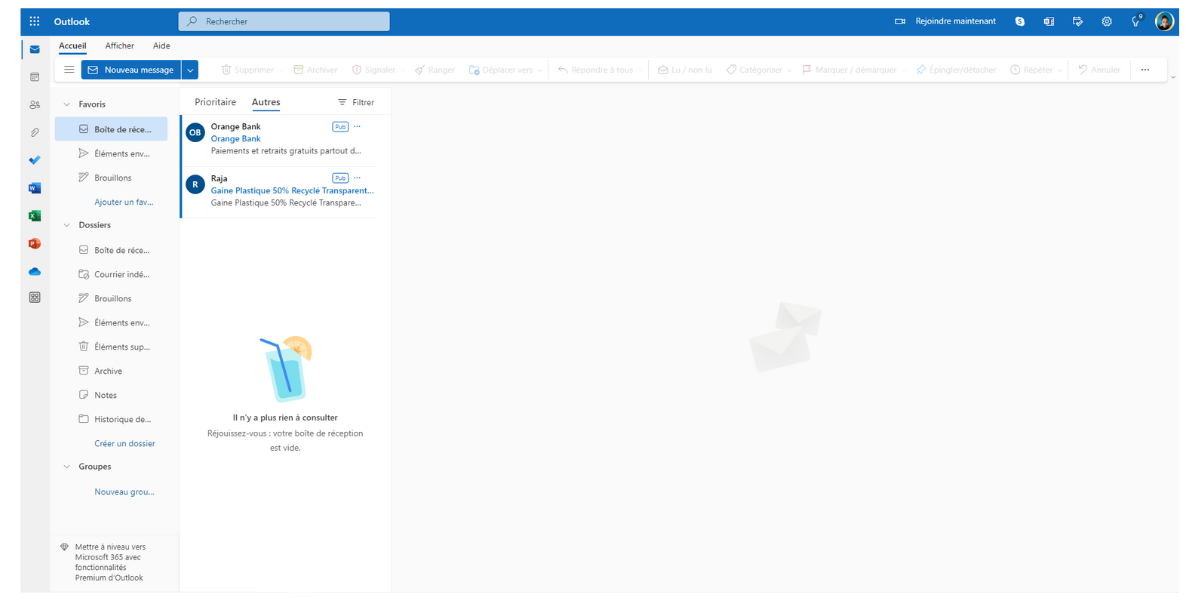
Known for its blue envelope logo, Outlook.com can be used for free on the web. A standalone Outlook desktop version is available for Mac and PC at 159 euros (the desktop app is also included in the Microsoft 365 Personal subscription, at 99 euros per year). This webmail has existed for nearly 30 years and has thus had plenty of time to evolve. If it was previously criticized for its austere look and less effective spam fighting, its developers have since stepped up to address these issues.
Microsoft Outlook can be used to send and sort emails, but also to create appointments in a calendar or manage your address book. It is also a gateway to the Microsoft 365 office suite. Online, you can access the flagship Word, Excel, Teams, and many more.
Service Platforms (Web, Mobile Apps, IMAP)
Outlook can be accessed on the web through a browser (Edge, Firefox, Chrome, Safari). However, note that it may conflict with certain ad-blocking extensions. An extension for Chrome and Edge was launched in 2021.
This mailbox can be accessed on smartphones and tablets. There is an app for iOS and Android.
Designed for all sorts of uses, this client supports the following protocols:
- IMAP.
- POP.
- SMTP.
So you can connect this mail client to accounts from other mail providers, like Yahoo, etc.
Note: Connections via third-party clients (Thunderbird, Apple Mail…) now require OAuth 2. Password-based configurations no longer work. The recommended server is now outlook.office365.com for all protocols.
Inbox Layout
Microsoft Outlook’s mailbox is sober and well organized. A column gives quick access to your favorites and tagged items, as well as the various folders of the mail client (inbox, drafts, spam, archives, sent items, and more). Specifically, you can:
- Add items to Favorites.
- Create new folders.
- Create groups to collaborate and share documents with others.
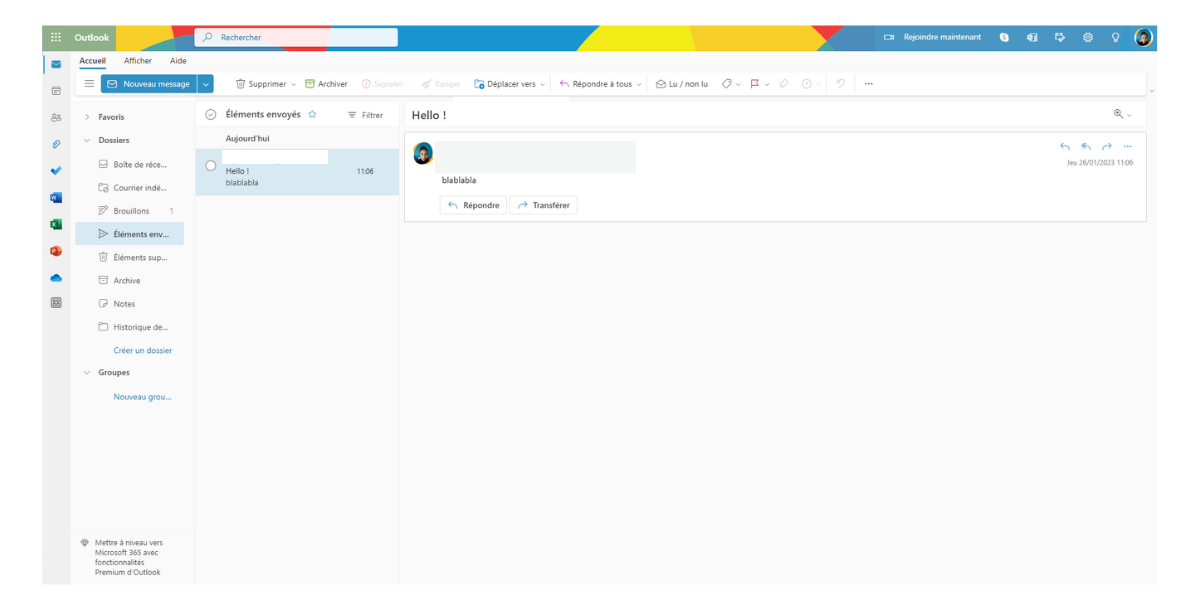
The various actions available are listed in a toolbar above the mailbox: delete, archive, report, move, reply, categorize, add a time marker, pin, organize, etc. The options are grayed out when they cannot be used, which is a real clarity issue that makes the tool even easier to use.
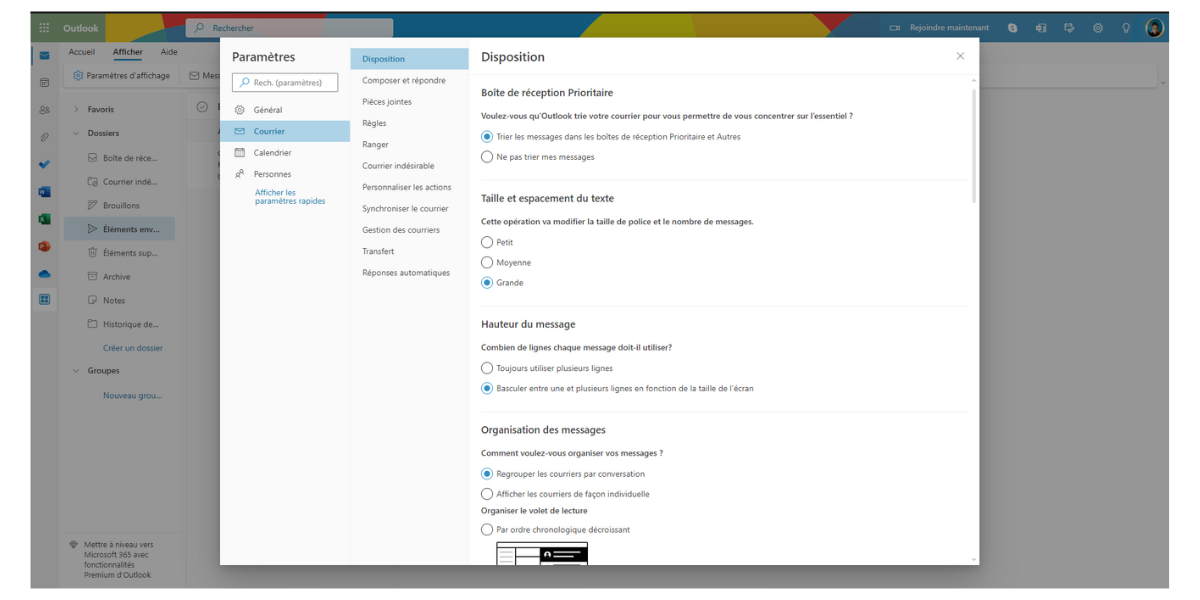
A tab “View” gives access to print functions. There you also find display settings and an immersive reader that reads the text aloud.
The Themes
You can customize Microsoft Outlook by going through the settings, found at the top-right of the screen. There are about fifty themes (which only changes the color of the top banner of the mailbox, which is quite limited) and several features to improve reading and viewing comfort:
- Dark mode.
- Display density adjustment.
- Organization of emails and reading pane.
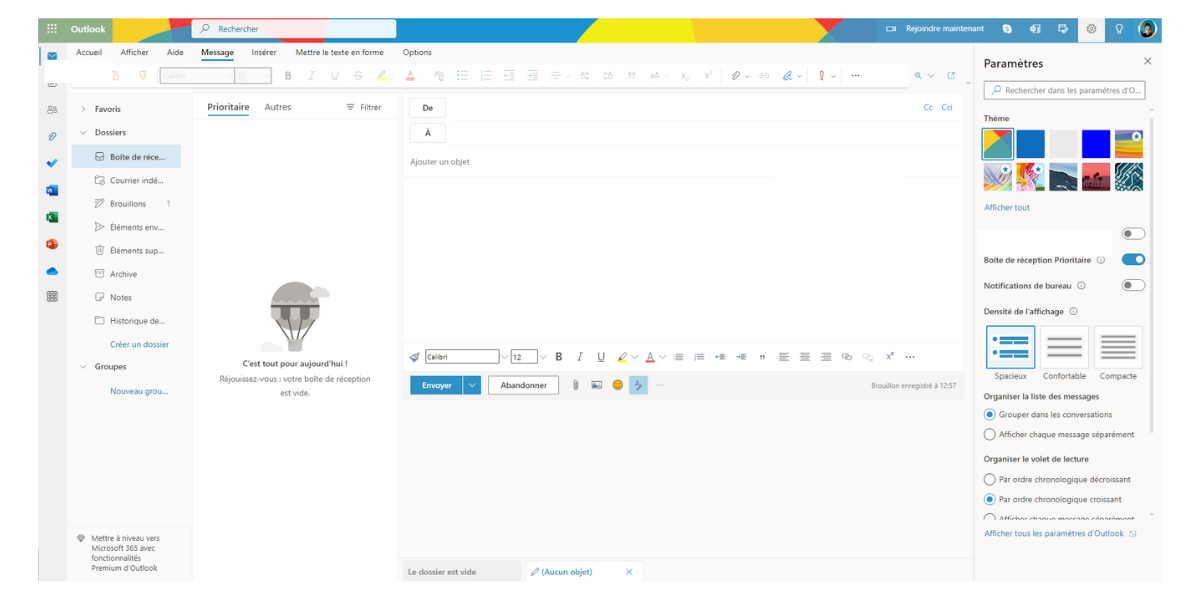
As you can see, the options offered are fairly basic, which is a bit of a disappointment.
Outlook.com: Managing Emails
Email management in Microsoft Outlook can be done in several ways. You can:
- Archive emails.
- Move them to folders.
- Mark as read/unread.
- Flag for follow-up to move them to the “Junk” folder.
- Tidy up to send them to the trash.
- Move into other folders, etc.
However, there are many other features that we will explore next.
Categorization
Microsoft Outlook includes a categorization utility. It can be used to tag different emails using color labels.
To assign a tag to an email, simply press the “Categorize” button in the panel above the email. By default there are six colored categories, which can be renamed easily. Several additional actions are possible:
- Create new tags.
- Delete them.
- Search for them using a dedicated tool.
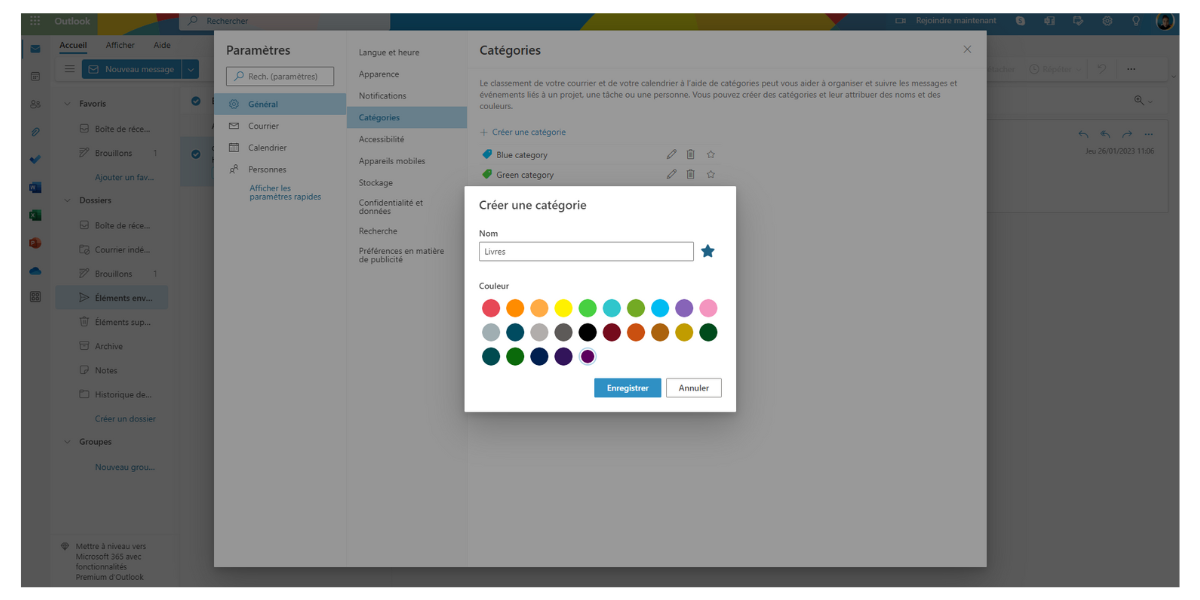
The full list of tags can be found by clicking “Manage categories” in the menu. It is also possible to place a category in the “Favorites” section and find it more quickly there.
Mail Tracking
Emails containing tasks can be highlighted with indicators for better follow-up. These indicators are available in the “Mark/Unmark” menu in the toolbar of the mailbox. Once activated, a small red flag icon appears on the message label.
Indicators can be augmented with a time notion. The software can add the email to a follow-up list for a certain period (today, tomorrow, this week, next week, etc.). You can also clear the indicators at any time or mark the task as completed.
Email Filtering
Many filters are provided within Microsoft Outlook to help users locate certain messages faster. In addition to sorting by date, size, ascending/descending dates, you can apply content filters. You can choose to filter for:
- Unread texts.
- Emails with indicators.
- Emails containing attachments.
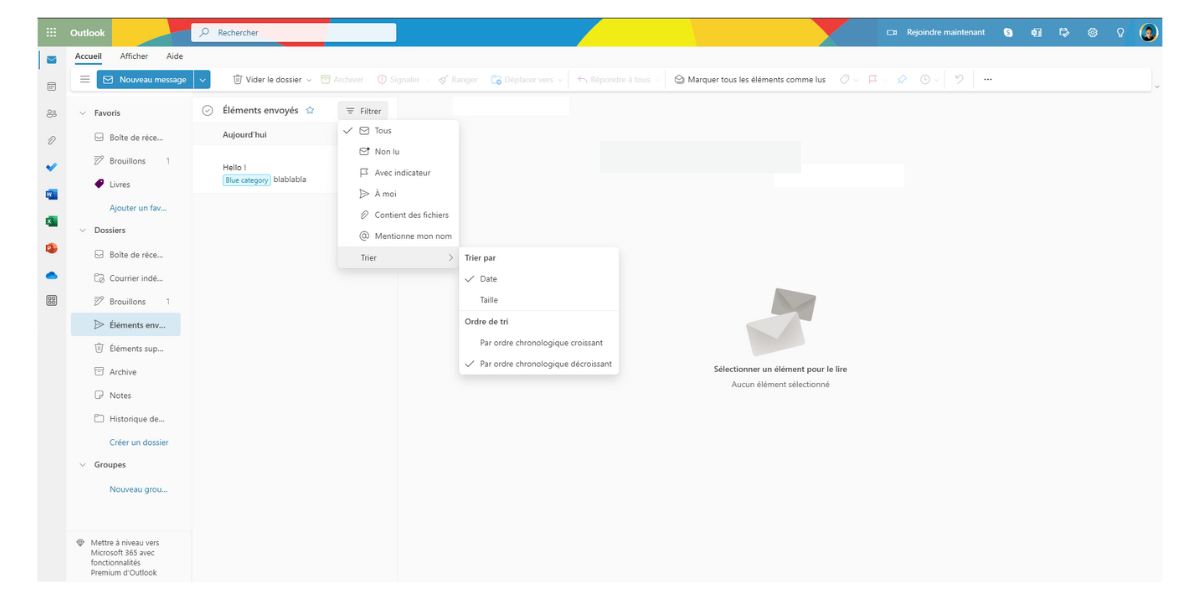
You can also find emails sent to yourself and even those that mention your name, which is very handy.
Creating Rules
Among its advanced options, Microsoft Outlook includes the ability to create rules. This feature detects senders or certain words and triggers a predefined action. For example, you can instruct the webmail to:
- Move and file emails.
- Tag emails.
- Send automatic responses.
An assistant is provided to help configure this option.
Copilot AI
Unveiled in 2023, Copilot AI is now included in Microsoft 365 Personal, Family and Premium subscriptions and works with @outlook.com, @hotmail.com, @live.com and @msn.com addresses. It is capable of:
- Sorting or summarizing emails.
- Suggesting improvements to a draft, whether to clarify the text or perfect the tone, based on the context of the email.
- Drafting texts on its own: you can edit the result, adjust length or tone in one click in a dedicated window.
- Creating a message from an Excel file.
As of 2026, Copilot has expanded in the new Windows Outlook, with drafting and reply help in the chat in April, then drafting with a personal Microsoft account and writing coaching in June. Copilot does not exist with Microsoft 365 Basic, and AI remains reserved for the account holder, including with Family.
Other Outlook.com Features
This platform offers a wide range of additional features.
The Search Engine
While not as advanced as Google’s queries, the “Search” function is still effective. It lets you search for keywords or query targeted folders. You can also sort by recipient or sender, by date, or bring up emails containing attachments.
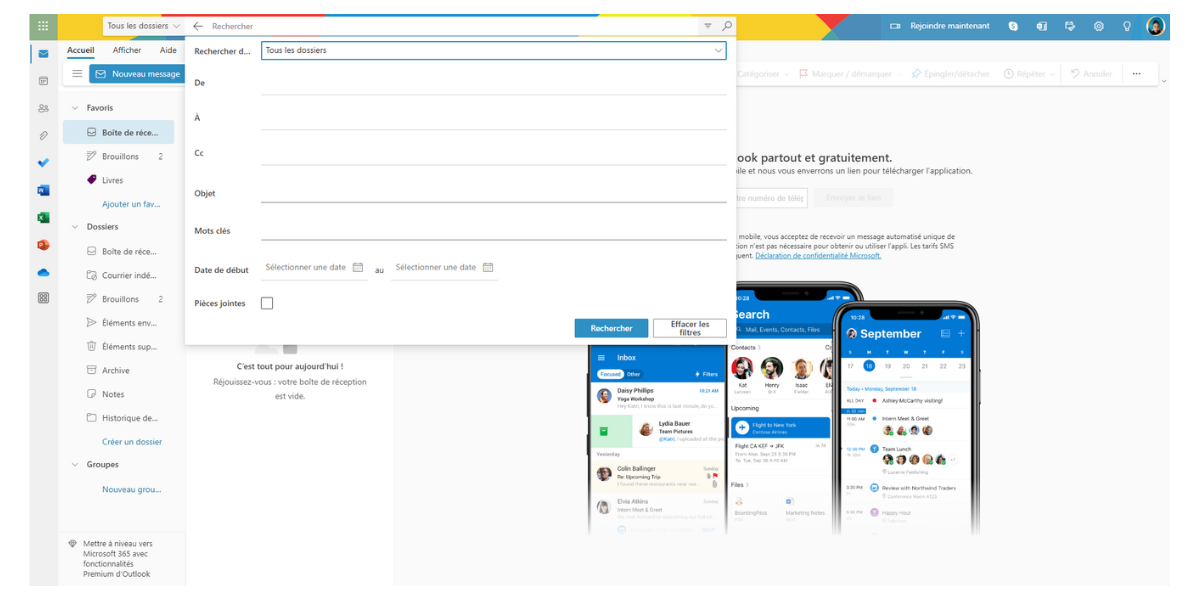
The search results can also include emails you’ve sent to yourself and even those that mention your name, which is very handy.
Rule Creation
Among its advanced options, Microsoft Outlook includes the ability to create rules. This feature detects senders or certain words and triggers a predefined action. For example, you can ask the webmail to:
- Move and file mails.
- Tag emails.
- Send automatic replies.
An assistant is available to help configure this option.
Copilot AI
Introduced in 2023, Copilot AI is now included in Microsoft 365 Personal, Family and Premium subscriptions and works with addresses from @outlook.com, @hotmail.com, @live.com and @msn.com. It is capable of:
- Sorting or summarizing emails.
- Providing suggestions to improve a draft, whether to clarify the text or perfect the tone, based on email context.
- Drafting texts itself: you can refine the result, adjust length or tone in one click within a dedicated window.
- Creating a message from an Excel file.
In 2026, Copilot has expanded in the new Outlook for Windows, with writing and reply assistance in chat in April, then drafting with a personal Microsoft account and writing coaching in June. Copilot does not exist with Microsoft 365 Basic, and the AI remains reserved for the account holder, including with the Family offer.
Outlook.com: GDPR and Cloud Act — What About Your Data?
The data stored in Outlook.com is subject to a real legal tension between American law and European law.
The American Cloud Act (2018) allows U.S. authorities to request access to data controlled by U.S. companies, regardless of where that data is physically stored. Since Microsoft is a U.S. company, it is theoretically subject to this legislation.
To address these concerns, Microsoft launched EU Data Boundary. It aims to store and process customer data and corporate online service data (Microsoft 365, Azure, Dynamics 365, Power Platform) within the European Union and the EEA, including Switzerland and Norway. Some limited transfers outside this zone still occur in certain cases, and Microsoft’s documentation does not explicitly cite Outlook.com consumer services as covered.
For individual users of the free version, the situation is more nuanced: although data is replicated in Azure infrastructures in Europe (Microsoft has datacenters in several European regions, including France since 2018), the contractual guarantees of data residency are primarily reserved for professional subscriptions.
On the GDPR side, Microsoft commits to respecting the European data protection regulation. The company publishes detailed documentation on how it handles government access requests and user rights (access, rectification, portability, erasure).
Since September 2025, the European Data Act also requires cloud providers operating in the EU to implement technical measures preventing illegal access by third-country governments to non-personal data.
In practice, for basic personal use (family exchanges, newsletters, appointment management), the level of protection offered by Outlook.com is adequate. For sensitive professional exchanges or data subject to strict compliance obligations (health, finance, sensitive data), one should assess whether the protections of the Microsoft 365 Business offer are suitable, or whether a sovereign-European-hosted mailbox (such as Infomaniak or ProtonMail) would better meet the requirements.
Outlook.com vs Gmail: A Direct Comparison
Gmail is the benchmark free mailbox, and comparing the two services is a natural question for many users. Here is an objective snapshot.
| Criterion | Outlook.com | Gmail |
| Free storage | 15 GB (mail) + 5 GB OneDrive | 15 GB (mail + Drive + Photos) |
| Interface | Clear and streamlined, well organized | Very efficient, but dense |
| Office integration | Microsoft 365 (Word, Excel, Teams…) | Google Workspace (Docs, Sheets, Meet…) |
| Built-in AI | Copilot (paid subscription) | Gemini (largely paid features) |
| Spam filtering | Good, historically slightly less effective than Gmail | Excellent, among the best on the market |
| Calendar | Outlook Calendar | Google Calendar |
| Custom domain | No (Business offers only) | No (Google Workspace only) |
| Privacy | Subject to Cloud Act (EU Data Boundary for pros) | Subject to Cloud Act. Email analysis for ad personalization |
| Offline mode | Only on desktop/mobile apps | Available on web (via Chrome) |
| Protocols | IMAP, POP, SMTP | IMAP (always on), POP (toggle in settings), SMTP |
| Paid offers price | From 20 €/yr (M365 Basic) | From 19.99 €/yr (Google One) |
Outlook.com naturally makes sense if you already use the Microsoft ecosystem (Windows, Office, Teams, OneDrive). Gmail remains the reference for anti-spam filtering and integration with Google services (Android, YouTube, Drive). Data privacy is a legitimate concern in both cases, as both companies are American and subject to the Cloud Act.
Who Is Outlook.com For?
Outlook.com is not a universal mailbox that suits every profile in the same way. Here is a summary to help you determine if it matches your use:
For individuals
Outlook.com is perfect for daily personal use: sending and receiving emails, managing a calendar, storing files on OneDrive, and organizing your contacts. The free version (15 GB) is sufficient for most users, provided you regularly manage your mailbox or archive messages. The interface is clear and accessible, even for users who are not tech-savvy.
For students
Microsoft offers preferential plans for students via Microsoft 365 Education, often accessible for free through their school or university. Outlook.com is well integrated with Teams and SharePoint, making it a natural tool in a Microsoft school environment.
For professionals and SMEs
The free version shows its limits here: no personalized domain, limited storage, and less formalized compliance guarantees. Microsoft 365 Business offers (Basic, Standard, Premium) are designed for this audience.
For users already in the Microsoft ecosystem
That’s where Outlook.com reveals its full potential. If you use Windows, Teams, OneDrive, Word or Excel, Outlook.com integrates naturally and smoothly. Switching between apps is streamlined, OneDrive-shared files are accessible directly from the mailbox, and Copilot (with a Microsoft 365 subscription) can act across your entire office suite coherently.
Conclusion

- storage15 GB storage
- securityNative encryption available
- alternate_emailNo personalized domain
- smartphoneiOS and Android apps
- push_pinUSA jurisdiction
The Outlook.com tool is intuitive, minimalist and pleasant to use. It offers a 15 GB storage space (paying subscribers are entitled to 100 GB), which is substantial. While it provides limited customization of its appearance, you are pleasantly surprised by its organizational flexibility (items in favorites, mail categorization, creation of groups and folders). You also appreciate the spell checker, grammar checker and accessibility checks as well as the search function, which is simple yet effective.
The big strength of this mailbox is its integration with the Microsoft 365 suite, giving access to many useful tools, such as a task management app, a calendar, and especially Word, Excel, PowerPoint, Teams and more. In terms of security, it is a pity that it does not go as far as some more advanced competitors in the field.
Check out our other reviews on online mail services:
- Gmail review: the free mail king, but at what price?
- Proton Mail review: the anti-surveillance mailbox
- Infomaniak Mail review: the Swiss mailbox challenging Gmail
- Mailfence review: how does this encrypted mail compare to Gmail?
And our comparisons:
- Swiss mail services, Proton Mail VS Infomaniak Mail (formerly kMail): which service suits you best?
Outlook groups together mail, calendar, contacts and task management in a single interface. The app is available on all platforms, with or without a Microsoft 365 subscription.
The Outlook client has evolved substantially, integrating more features while maintaining simplicity. It serves as an entry point to the Microsoft 365 suite and can enhance productivity across the board.

Daniel Brooks
I cover everyday products with a practical eye, from kitchen tools and home essentials to smart gadgets and consumer trends. My goal is to help readers understand what is genuinely useful, what is worth the price, and what deserves a second look before buying.