
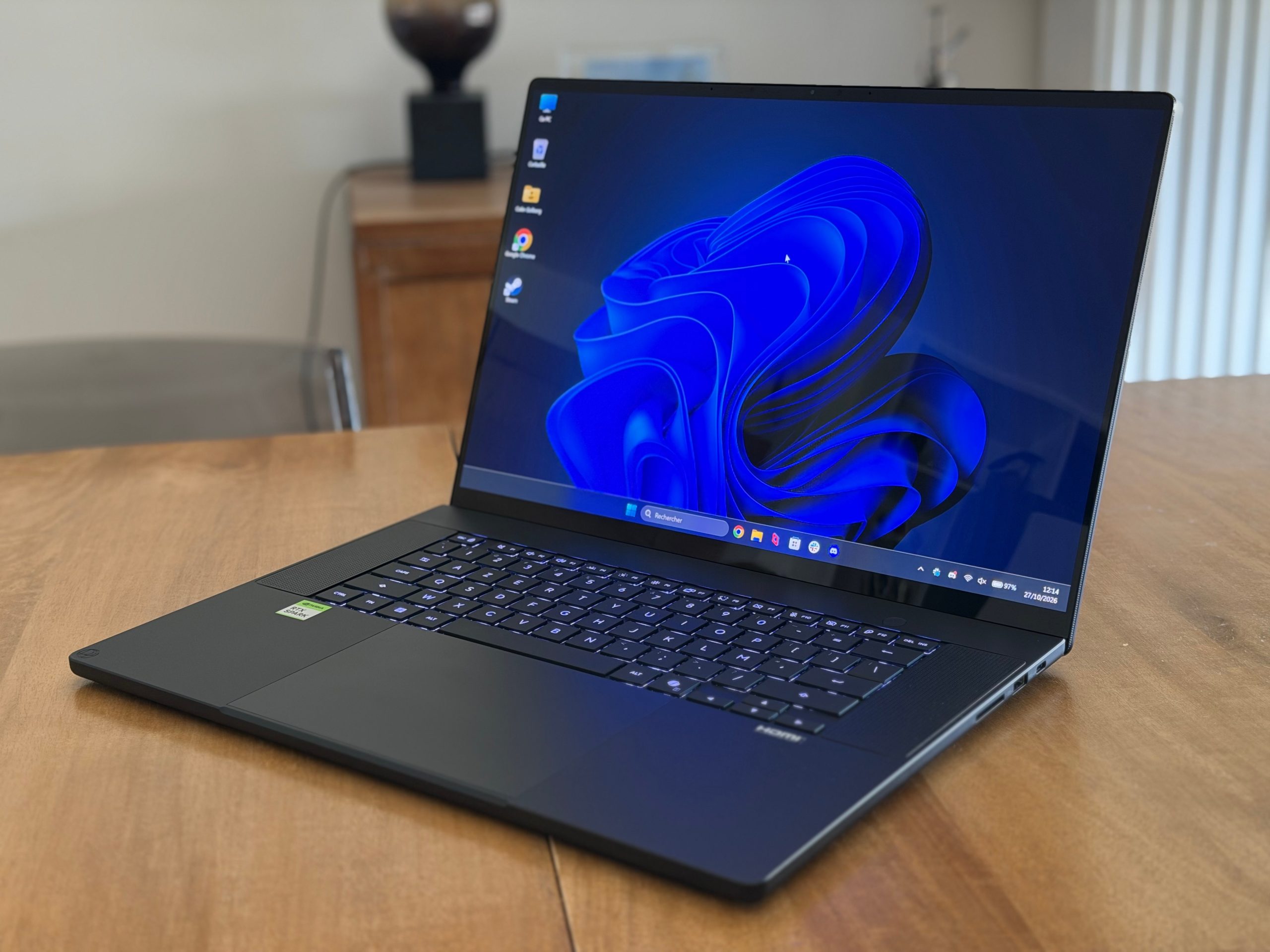
With RTX Spark, NVIDIA aims to bring together work, gaming, and local AI in a new family of laptops. The ASUS ProArt P16 is the first of these models to land in our hands. Equipped with the N1X chip, 64 GB of memory, and a 16-inch OLED display, it must prove that NVIDIA’s promises hold up under everyday use.
No Intel, AMD, or Qualcomm sticker on this one! © Colin Golberg
In San Francisco, NVIDIA introduced us to an architecture that brings the CPU and GPU closer together around shared memory, accompanied by substantial work on Windows and the software. We detailed these choices in our breakdown of RTX Spark, which revisits this promising architecture in depth. Now the challenge is to verify these promises in real life with one of these machines.
ASUS ProArt P16 RTX Spark opens the ball, its positioning as a creative laptop is of particular interest: it must last a full working day, withstand demanding applications, leave room for gaming, and still accommodate local AI.
We took it on daily use and subjected it to our performance, creation, AI, and gaming tests. The objective: understand what this first generation really brings, and who it is aimed at when Windows and Mac laptops are already plentiful.
Meilleurs prix
ASUS ProArt P16 RTX Spark
Best prices
Fnac
€3,299.99
Fnac
€3,299.99
Darty
€3,299.99
Design and equipment: a 16″ portable that’s easy to carry
We were used to working on a 13-inch screen, so the arrival of this ProArt gave us some reservations. A large screen is nice at a desk, but it’s a bit less convenient when you have to reorganize your bag around it. Surprise: the P16 slid easily into the same portable compartment as our usual laptop. ASUS advertises 1.77 kg for 35.41 × 24.30 cm and a thickness of 1.29 to 1.59 cm. It’s reasonable for a 16-inch machine with such a GPU.
The design is understated, without the gaming-aesthetic cues. For a laptop that will be used at the office by day and for gaming in the evening, it’s the right choice.
Build quality matches the positioning. Materials, assembly precision, no flex: the ProArt doesn’t pale next to a MacBook. The lid opens with one hand, the hinge moves smoothly, and the whole feels trustworthy.
On the connectivity side, you’ll find three USB4 Type-C ports at 40 Gbps, all compatible with video output and Power Delivery, plus a USB-A 3.2 Gen 2 at 10 Gbps. There’s also an HDMI 2.1 FRL output, an SD Express 7.0 reader, and a combined 3.5 mm audio jack. The card reader and the USB-A port are welcome additions on a creator-focused portable.
The screen and chassis finesse are notable. The keyboard offers satisfying typing, although our unit was in QWERTY, which required a short adaptation period; we quickly got used to it. The oversized touchpad is well-suited to gestures. Its scrolling, however, accelerates a bit too abruptly for our taste: you can easily overshoot the read area you intended. Fortunately, you can disable that acceleration.
The speakers complete the package. For a movie or music without headphones, the sound is decent, with convincing spatialization. The software audio processing, however, gave us more trouble; we’ll come back to that.
Display: OLED that never gets old
Moving to a 16-inch format is justified as soon as you start working. The surface is comfortable and the 2,880 × 1,800 resolution ensures precise visuals. Coupled with G-Sync, the 120 Hz refresh rate keeps up with navigation and gaming, supported by a GPU able to take advantage of it. This is one of the major strengths of this ProArt.
In HDR, videos and games are stunning, between the deep blacks of OLED and the bright highlights. The factory calibration seemed fair, at least to the eye. Without probe measurements, we cannot guarantee it for all color-critical work.
Performance: the GPU makes the difference
With 20 cores, the N1X has plenty of support for parallel tasks. Cinebench 2024 assigns it 1,582 points in multi-core and 118 points on a single core. Among laptops we tested, the MacBook Pro M5 Pro leads with around 2,014 and 199, while the Zenbook A16 scores about 1,706 and 150.
The P16 holds its own in multi-core-optimized software, but its processor isn’t the category’s new reference. Especially on a single core, it shows noticeable lag: twenty cores aren’t everything. Cinebench 2026 confirms steady behavior, with around 6,460 points in multi-thread and 480 on a single thread.
Graphics performance is where the ProArt becomes clearly positioned. In Speed Way, the ProArt reaches 3,066 points, well ahead of the integrated GPUs in the Zenbook A16 and XPS 14. It also outperforms the Radeon 8060S in the ROG Flow Z13, which scores around 1,813. With this machine, Windows on ARM is no longer synonymous with major graphics compromises.
For the Blender benchmark, the ProArt scores 4,849, calculated on three scenes: Monster, Junkshop, and Classroom. The higher the score, the faster the GPU performs.
In our selection, the ProArt sits between the Zephyrus G14 with an RTX 5070 Ti Laptop and the Stealth 16 with an RTX 5080 Laptop. It also outpaces the MacBook Pro M5 Pro and the Galaxy Book6 Ultra with the RTX 5070 Laptop. The N1X demonstrates solid compute ability for 3D rendering, beyond its gaming performance.
We also ran a separate Blender test using the OptiX GPU acceleration on a variant of the Barbershop scene. Rendering takes about 47 seconds, including file save.
Storage performance is a bit disappointing. CrystalDiskMark reports 2,706 MB/s read and 3,721 MB/s write, confirmed by a second check. It’s modest for a laptop at this price, especially if you regularly move large projects. The SSD was over 80% full during the measurement, which used a 1 GB file. These figures don’t reveal long transfer times, and they don’t indicate an ARM architecture bottleneck. Whatever the cause, it’s not a strong point.
Creation: OptiX and image generation go to work in practice
Blender GPU benchmark gives the ProArt P16 a score of 4,849. It measures calculation speed across three reference scenes, Monster, Junkshop, and Classroom: the higher the score, the faster the GPU on this pass.
The ProArt holds its own in software that uses many cores, but the processor isn’t the new benchmark in the category. On a single core, in particular, it lags: twenty cores aren’t everything. Cinebench 2026 confirms a steady pattern, around 6,460 points multi-thread and 480 points on a single thread.
In our Blender-specific test using OptiX acceleration, the ProArt scores well compared to the other laptops in our sample. The rendering speed improves when OptiX is used, highlighting the advantage of NVIDIA’s ecosystem even on ARM-based Windows.
Local AI: 64 GB already used, but the perfect agent isn’t included
We expected a lot from local AI, and this part of the test left us with mixed feelings. The 64 GB memory allows running a fairly large model, but it does not dispense with careful model selection and accepting its limits. For our measurements, we used Qwen3.8-27B-UD-Q4_K_M. This 27-billion-parameter model, quantized to 4 bits, was run by llama.cpp in ARM64 with CUDA.
Our tests clearly outline the current boundary. The local model is useful for generating documentation, including NVIDIA’s evaluation guide, for outlining a plan, or for rewriting a text. It can also perform standalone benchmarks like 3DMark, Blender, and CrystalDiskMark. In these tests, it did not complete the tasks, and we had to revert to cloud-based models.
This usage example does not replace a cloud-based agent for everything. It explains why we would not recommend this P16 to someone seeking a local agent capable of running everything without supervision. Producing text and carrying out a sequence of actions to an endpoint are two capabilities that are still easy to confuse.
The cloud is not a universal solution for all uses. Documents covered by professional secrecy, medical records, unpublished research, or sensitive corporate information should not leave a controlled environment. A local AI becomes valuable precisely because it can assist in synthesizing documents, planning, or reworking a text without sending data to an AI provider, provided the tools used are also local.
The setup, however, remains technical: choosing the model, its quantization, and the software responsible for running it means you have to know where you’re going. Regular users will find it, but others shouldn’t have to learn all of this to enjoy the device they just bought. This is exactly where Microsoft’s Get Started is expected to come in, intended to simplify these first steps. And frankly, it can’t come soon enough: on a PC priced this way, you should be able to get started without poring over the documentation.
Once everything is in place, the performance follows. For a quick code-generation task, generation speed goes from about 16 to 51 tokens per second with DFlash. This mechanism delegates to a small model the task of proposing sequences for the main model to verify. The response is written faster, without the model gaining new knowledge.
We also explored local model generation speeds with and without DFlash. For a 1,024-token answer, this example drops from about 64 seconds to 21 seconds overall. The gain varies with the type of request and is not identical for our French-language series versus code.
We frequently look at how fast the AI writes, but less often at how long we wait before it starts responding. With an 16,384-token request and no cache reuse, the first token arrives after roughly 23 seconds, with DFlash enabled. Loading a long query or a document set takes time, even when the sequence writes quickly. A well-cached agent can avoid much of this recalculation from one exchange to the next, but our measurements cannot reproduce a complete session with an agent.
We first wondered if 64 GB might be a little tight. During tests, the GPU had roughly half that memory available (about 30.5 GB), and the model and its context must fit within that envelope. Windows and the GPU both draw from the same pool: keep in mind that the unified memory claimed in the spec sheet is not the memory available to a model.
Moving to 128 GB would grant access to larger models and contexts. NVIDIA even suggests this in its guide, with a configuration called Flash-Next requiring at least 78 GB allocated to the GPU. That does not mean you need 128 GB to do useful AI, nor that a larger model would necessarily have improved our benchmarks.
What we take away is a configuration that is already useful for well-defined documentary and generative tasks, especially when data must remain on the machine. This is also where RTX Spark finds its raison d’être: to bring, in a single portable, the memory and GPU power needed to work with local models. To turn it into a fully autonomous agent development workstation, you’d need more, including simpler Windows onboarding, better-integrated agents, and smoother transitions between local and cloud. For now, this PC really enables what it promises to do.
Gaming: smooth performance with the right settings
Playing on a machine with such a professional look is one of the pleasant surprises of this test. The contrast between the machine’s sobriety and what it displays is genuinely appealing.
Against dedicated GeForce laptops, the ProArt doesn’t always match. In Cyberpunk 2077, at our tested settings (2,560 × 1,600, RT Ultra, DLSS Balanced, no generation of images or path tracing), the P16 hits 39.1 FPS. It’s outpaced by the Galaxy Book6 Ultra with its RTX 5070 Laptop (45.9 FPS), the Zephyrus G14 with RTX 5070 Ti Laptop (50.9 FPS), and the Stealth 16 with RTX 5080 Laptop (57.2 FPS). Different versions and drivers exist across these machines, but the takeaway is clear: don’t buy this ProArt expecting to match the performance of a laptop with a dedicated GeForce GPU everywhere.
Final results across six games, including generated images. All tests run at 2,560 × 1,440, with DLSS Balanced and image generation ×3, on AC power, in Performance mode.
Cyberpunk 2077: High quality, Low ray tracing, no path tracing.
Marvel Rivals: ARM64EC version, High quality, High Lumen.
007 First Light: High quality, no path tracing; static scene in The Descent.
DOOM: The Dark Ages: Medium quality, no path tracing; built-in Siege benchmark – Part 1.
Gears of War: E-Day: Medium quality, ray-traced geometry and shadows; built-in benchmark.
Pragmata: Ray tracing enabled, Ray Reconstruction disabled; starting corridor scene.
With the full NVIDIA suite at work, results are excellent: all six games exceed an average of 120 FPS, enough to take advantage of the 120 Hz display. DLSS and image generation ×3 contribute substantially, but that is precisely the point of the platform: pairing a strong GPU with technologies that push it further. On a portable so understated and easy to carry, being able to enjoy these games under such conditions is a real success.
We also ran NBA 2K27 with DLSS 5 rendering, achieving 91.4 FPS with DLSS Performance and FG ×2.
Compatibility remains something to verify title by title. These games run under the tested conditions, but this does not cover your entire library, especially when anti-cheat is involved. A 64-bit game that runs through Windows translation does not prevent the GPU from working natively. In contrast, a system component that is absent in ARM might block launch. Before replacing your gaming laptop, verify the titles you actually care about.
Mobility and ASUS software: power follows, battery life lags
NVIDIA stressed during its presentations that the N1X should keep its performance when unplugged. Our measurements largely support this, with losses between 0.3% and 8.5% depending on the load, in Performance mode. Local AI text generation barely slows it down, and Speed Way maintains a score very close to the AC result. Cyberpunk, in High and 1440p, drops from 63.7 FPS to 58.3 FPS.
So you can take a good portion of P16’s power on the go. But longer endurance is another matter, and this is the area where we were most disappointed in practice.
Video playback lasted about 9 hours (8 h 46 min) on our YouTube 1080p60 test, in Edge fullscreen at 100% brightness, with headphones and Quiet/Eco mode engaged.
When the GPU works constantly, plugging in becomes quickly mandatory. Our heavy Cyberpunk scene, with path tracing and generation ×4, hints at around 54 minutes of endurance, extrapolated from our 20-minute measurement. In continuous code generation with the local model, we project around 67 minutes. Both loads were measured in Performance mode at 50% brightness.
The thermal camera shows a peak of 43.7 °C near the center of the keyboard. When plugged in and in Performance mode, the ProArt becomes very loud under gaming or sustained AI workloads. Without a headset, this is frankly intrusive. We would not want to subject open-plan colleagues to this for long calculation sessions. We did not use a sound level meter, but the ear tells all: plan for noise-canceling headphones or an external display to move the laptop away.
The audio service that kept the PC busy at idle
The distribution of settings between MyASUS and ProArt Creator Hub is already frustrating; you jump between them to find options that would benefit from being unified. We also encountered a more annoying issue with IntelliGo, a pre-installed audio-processing software component on our unit. It kept the processor busy and spun up fans even when we were not doing anything with the PC.
During our measurements, IntelliGo used about 6.3% of CPU. At the same time, LSASS, a Windows security process, showed unusually high activity, around 8.6%. Reinstalling the component didn’t change anything. Targeted disabling of the service and its tasks removed this load, including after reboot: no idle whirr, and the sound still works.
This is only a workaround, not a fix, and a buyer should not have to chase an audio service to regain normal operation. The N1X isn’t to blame: ASUS’s software integration is at fault. We hope a quick update will fix this, but ASUS’s software support is generally good, so this should not deter purchase.
ASUS ProArt P16 RTX Spark: Clubic’s verdict
NVIDIA and ASUS hold true to their bet: the ProArt P16 plays, creates, and runs a local AI on a single portable machine, with a display tailored for work and for play. For a first generation with software that still has some rough edges, it’s impressive.
But reservations weigh on the purchase: audible noise as soon as the GPU is busy, and a mandatory power outlet for demanding workloads. For the best performance-per-watt while gaming, aim for a laptop with a dedicated GeForce GPU, and for endurance, the best MacBooks and more modest Windows machines remain references if your software runs there.
A 64 GB RAM setup makes sense if you already know which local models or tools you’ll be using, or if confidential data cannot be trusted to a remote AI. It did not convince us as a replacement for a robust cloud agent to handle everything, but that’s not the only reason to choose local AI. We also don’t recommend paying for 128 GB without identifying a workload that truly needs it. RAM will load a model; it won’t teach it to finish your work.
At €5,300, the label “AI PC” isn’t enough: you need a real need to unite everything. The direction is good, but ASUS should refine its software, Microsoft should simplify the overly technical onboarding, and the next generation should gain in endurance. Not perfect, certainly, but when a first version makes you look forward to the second with such anticipation, you know something is happening.
Technical sheet – ASUS ProArt P16 RTX Spark
Processor
NVIDIA RTX Spark N1X
CPU cores
20
GPU
Blackwell RTX with 6,144 CUDA cores
Memory
64 GB shared between system and GPU
Storage
NVMe Samsung 1 TB SSD (MZVL81T0HFLB-00BTW)
Display
OLED, 16 inches, 2,880 × 1,800, 120 Hz
Operating system
Windows 11 Pro for ARM64 (build 28000)
Graphics driver
NVIDIA 617.42
Price
€5,299.99 (French variant H7607BA-SE030X, 64 GB / 1 TB)
The tested configuration
Model: ASUS ProArt P16 H7607BA.
Chip: N1X, 20 CPU cores and Blackwell GPU with 6,144 CUDA cores.
Memory: 64 GB shared between system and GPU.
Storage: 1 TB NVMe SSD (Samsung MZVL81T0HFLB-00BTW).
Display: 16-inch OLED, 2,880 × 1,800, 120 Hz.
System: Windows 11 Pro ARM64 (build 28000), NVIDIA driver 617.42.
Price: €5,299.99 for the French version H7607BA-SE030X with 64 GB / 1 TB.
Our test conditions
Unless otherwise stated, power measurements are performed in Performance mode, and repeated series are summarized by their median. The other laptops cited were tested under their own conditions (system, drivers). The variances thus give a sense of order of magnitude, not a millimeter-precise ranking.
Design and equipment: a 16″ that’s easy to carry (continued)
We’ve grown accustomed to working on smaller screens, so the ProArt’s size initially raised questions. Yet the P16 managed to tuck into the same bag as our usual portable. The chassis is robust, with a neat, restrained finish and careful assembly. The screen edge-to-edge look is elegant, and the lid action feels reliable.
The keyboard is comfortable, even with a QWERTY layout. The large touchpad is well-suited for gestures, though its vertical scrolling acceleration can be a little aggressive, requiring a quick disable in settings. The trackpad’s size and smoothness remain a major advantage for creative work.
The speakers provide a good baseline for film and music without headphones, with a reasonable sense of space. The software audio processing, however, introduced irritations that we would prefer to see resolved in a future update.
Screen: OLED that you won’t tire of
The leap to a 16-inch screen is justified by real-world use. The 2,880 × 1,800 resolution is crisp, and with G-Sync and a 120 Hz refresh, it makes navigation and gaming fluid, leveraging the GPU’s capabilities.
HDR content looks superb on the OLED, with deep blacks and bright highlights. The factory calibration seems fair at a glance, though we cannot claim optimal color accuracy for professional color workflows without instrument measurement.
Performance: the GPU is the differentiator (detailed)
The N1X’s 20 cores provide ample resources for multi-threaded workloads. Cinebench 2024 scores around 1,582 multi-core and 118 single-core; MacBook Pro M5 Pro leads with around 2,014 and 199, Zenbook A16 around 1,706 and 150.
In multi-core sensitive software, the P16 holds its own, but the processor isn’t the category’s new king. In single-core tasks, it shows a noticeable lag. Cinebench 2026 confirms steady, though not market-leading, performance: about 6,460 points multi-thread and 480 single-thread.
Graphics are where the ProArt shines, notably in Speed Way: 3,066 points, well ahead of the Zenbook A16’s and XPS 14’s integrated GPUs, and above the Radeon 8060S in the ROG Flow Z13. The Windows-on-ARM environment is no longer a big graphical compromise here.
In Blender’s OpenGL/OptiX-accelerated test, the ProArt demonstrates robust performance, and is well-positioned among the comparison laptops in our suite.
We also measured synthetic disk speeds. CrystalDiskMark reports 2,706 MB/s read and 3,721 MB/s write, a modest result for a premium portable, especially when handling large projects. The test drive was over 80% full, so these numbers don’t reveal long-term performance or any ARM-specific bottleneck. It’s a relative weakness rather than a fundamental flaw.
Creation: OptiX and image generation in practice
Blender GPU benchmark returns a strong score of 4,849 for the ProArt, testing three sequences: Monster, Junkshop, and Classroom. A higher score indicates faster GPU performance for this task.
The ProArt’s rasterization performance is strong in workflows leveraging multiple cores, but the CPU is not the category benchmark. In single-thread performance, it lags.
Speed Way and image-generation benchmarks position the ProArt as a stable reference point among Windows ARM laptops, serving as a strong base for a local-accelerated workflow.
A separate Blender test using OptiX acceleration shows the ProArt stands up well against a variety of laptops in our sample, illustrating the practical benefits of including CUDA and OptiX in an ARM-based Windows environment.
Local AI: the 64 GB memory already in use, but the perfect assistant is not packaged with the laptop
Our expectations for local AI were high, and the results left us with mixed feelings. The 64 GB can host a sizable model, but you still need to choose a capable model and live with its limits. For our measurements, we used Qwen3.8-27B-UD-Q4_K_M, a 27-billion-parameter model quantized to 4 bits, run by llama.cpp in ARM64 with CUDA.
Our tests outline a clear boundary. The local model is capable of generating documentation, including NVIDIA’s evaluation guide, planning, and rewriting text. It can also perform standalone benchmarks like 3DMark, Blender, and CrystalDiskMark, but it did not complete these tasks without cloud-based assistance.
In other words, this is not a plug-and-play replacement for all cloud-based AI tasks. It demonstrates the feasibility of on-device AI for certain use cases, but not a complete autonomous agent solution without cloud support or a broader software ecosystem.
On-device AI: the future is promising, but the software integration needs work
We observed that the 64 GB is useful for enabling local models and contexts for well-defined tasks, particularly when data must stay on the device. The RTX Spark concept—combining memory and GPU power on a portable—is compelling for on-device AI exploration and development. However, turning this into a truly autonomous local agent requires smoother Windows onboarding, easier integration of agents, and a more seamless move between local and cloud processing. For now, this PC demonstrates what is possible and what still needs refinement.
Gaming: the fluidity is there with the right settings (reprise)
In practice, gaming on a laptop with such a professional appearance is a pleasant surprise. The contrast between the device’s understated design and what it can render is appealing.
In games that favor a dedicated GPU, the ProArt can’t always keep up with top-tier GeForce-powered rivals. In Cyberpunk 2077, at 2,560 × 1,600, RT Ultra, with DLSS Balanced and no path tracing, the P16 reaches about 39 FPS. It trails the Galaxy Book6 Ultra (45.9 FPS), the Zephyrus G14 (50.9 FPS), and the Stealth 16 (57.2 FPS). The results vary with drivers and configurations, but the takeaway remains: don’t expect this P16 to match a high-end GeForce laptop in all games.
All six tested games deliver above 120 FPS on average when run at the tested resolution, with image-generation and DLSS rolled into the mix, demonstrating the platform’s strength: pairing a robust GPU with NVIDIA’s acceleration technologies to push beyond baseline performance. On a portable that’s this sober and easy to carry, being able to enjoy gaming in these conditions is a real win.
We also tested NBA 2K27 with the neural DLSS 5, reaching 91.4 FPS in DLSS Performance with FG ×2.
Compatibility remains an app-by-app question. These titles run under the tested configurations, but this does not guarantee that your entire library will run identically, especially with anti-cheat systems in play. An x64 game running through Windows translation doesn’t prevent the GPU from operating natively. However, a missing system component in ARM could block a launch. Before replacing your gaming notebook, verify the titles you care about most.
Mobility and ASUS software: power follows, endurance not so much
NVIDIA’s message was clear: the N1X should preserve power when unplugged. Our measures largely reflect that, with losses of 0.3% to 8.5% depending on load in Performance mode. Local AI text generation barely slows things down, and Speed Way maintains a score close to the AC result. Cyberpunk, at High and 1440p, drops from 63.7 to 58.3 FPS.
So you can carry a robust amount of P16’s power on the go, but long-run endurance isn’t as strong as the best endurance-focused devices. For video playback, our unit lasted just under 9 hours (8 hours 46 minutes) on our YouTube 1080p60 test, in Edge fullscreen at 100% brightness, with headphones and in Silent/Eco mode.
Video endurance lags behind the best performers. The Galaxy Book6 Ultra lasted over 17 hours and the Zenbook A16 about 15 hours in our video tests, so the ProArt is not in the long-running elite. It’s important to note that video playback alone isn’t a reliable predictor of a full workday.
As soon as the GPU is busy, power and heat demand rise quickly. Our heavy Cyberpunk scene with path tracing and image generation ×4 hints at around 54 minutes of endurance on a 20-minute test, while sustained code generation with the local model projects about 67 minutes. Both workloads were measured in Performance mode at 50% brightness.
The thermal camera shows 43.7 °C at the center of the keyboard.
On AC and in Performance mode, the ProArt is very loud when gaming or running sustained AI workloads. Without a headset, this is quite intrusive. We wouldn’t want to impose this fan noise on open-plan colleagues for long compute sessions. We didn’t use a sound meter, but the ear tells the story: expect a headset or an external monitor to move the laptop away for lengthy sessions.
The audio service that kept the PC busy at idle
The distribution of settings between MyASUS and ProArt Creator Hub is frustrating; you jump between them to locate options that would benefit from consolidation. We also ran into a more persistent issue with IntelliGo, a preinstalled audio processing software component on our unit. It kept the processor busy and spun up the fans even when we weren’t actively using the PC.
During measurements, IntelliGo used about 6.3% of CPU. Meanwhile, LSASS, a Windows security process, showed abnormal activity around 8.6%. Reinstalling the component did not help. Disabling the service and its tasks resolved the issue, eliminating idle fan noise and restoring normal audio functionality.
This is a workaround, not a fix, and a buyer should not have to chase an audio service to regain normal operation. The N1X isn’t at fault: ASUS’s software integration is. We hope a future update will fix the problem quickly, but ASUS’s software support is generally good, so it shouldn’t deter purchase.
ASUS ProArt P16 RTX Spark: Clubic’s verdict
NVIDIA and ASUS have kept faith with their bet: the ProArt P16 can play, create, and run a local AI on a portable, with a display designed for work and play. For a first generation with software that still shows its infancy, it’s impressive.
But there are caveats: audible noise when the GPU is under load, and the necessity to plug in for demanding workloads. For the best performance-per-watt in gaming, target a GeForce-equipped portable, and for endurance, the best MacBooks and leaner Windows machines remain the benchmarks if your software runs there.
64 GB of RAM makes sense if you already know which local models or tools you’ll use, or if your data cannot be trusted to a remote AI. It didn’t convince us as a replacement for a robust cloud agent for everything, but that’s not the only reason to choose local AI. We do not recommend paying for 128 GB unless you identify a workload that truly requires it. RAM loads a model; it doesn’t teach it to finish your work.
At €5,300, the “AI PC” tag isn’t enough; there must be a real need to bring everything together. The direction is promising, but ASUS must refine its software, Microsoft should simplify onboarding, and the next generation needs better battery life. Not perfect, certainly, but when a first version leaves you hungry for the second, you know something is starting to click.
Pros
– Creation, gaming, and local AI on a single machine
– Very successful 120 Hz OLED display
– Sleek finish, 16-inch form factor that’s easy to carry
– NVIDIA ecosystem: CUDA, OptiX, and DLSS
– Good battery life for a device this powerful
Cons
– Very high price
– Disappointing endurance for an Arm-based portable
– Very noisy fans under gaming and AI load
– Software remains immature
– SSD performance is behind the field for this tier
Best prices
Fnac
€3,299.99
Fnac
€3,299.99
Darty
€3,299.99
Read the conclusion
Customer reviews and practical notes show there’s real appetite for a device that could do it all on a single portable. The ProArt P16 RTX Spark demonstrates what RTX Spark can bring to a real-world device, but it also highlights the work still needed in software integration, power efficiency, and long-term endurance. If you’re a creator who wants local AI capability without recurring cloud costs and you’re willing to live with the noise and the learning curve, this machine makes a strong case for itself. If you’re seeking a plug-and-play AI assistant with a longer battery life and silent operation, you might want to wait for the next generation.
Technical sheet – ASUS ProArt P16 RTX Spark (summary)
– Processor: NVIDIA RTX Spark N1X
– Memory: 24 GB (in the summary box, though the main configuration supports up to 64 GB)
– Graphics: NVIDIA Blackwell RTX
– Screen: 16-inch OLED, 3840 × 2400 or 2880 × 1800, 16:10, 120 Hz, matte
– OS: Windows 11 Pro ARM64
– GPU Performance: strong multi-core results, solid GPU acceleration
– Battery life: up to around 9 hours video, shorter under heavy GPU load
– Weight: around 1.77 kg
– Price: €5,299.99 (64 GB / 1 TB version)
Conclusion
NVIDIA and ASUS deliver a device that proves a laptop can simultaneously work, play, and run local AI. The ProArt P16 RTX Spark demonstrates strong performance and compelling capabilities for on-device AI and professional workloads, and the OLED screen provides a superb visual experience for creators and gamers alike. However, it must address the noise under load, the software integration, and the gap in endurance to make a more complete proposition. For enthusiasts and professionals who can leverage its 64 GB RAM and local AI capabilities—especially where data must stay on the device—this first generation makes a compelling case. For others, it raises questions about practicality, price, and long-term software maturity. The foundation is solid, and the future looks promising.