
Google Drive is the world’s most used cloud storage service, with over 2 billion active monthly users. Free up to 15 GB, natively integrated into the entire Google suite and now strengthened by Gemini AI, it has evolved considerably in 2026. But is it still the best choice next to alternatives that have caught up on security and advanced features? Here is our full take.
Created by one of the world’s most influential companies, Google Drive is one of the best free cloud storage solutions. All it takes is a Gmail address—already fulfilled by millions of users—to enjoy the free version of the service, which offers cloud storage up to 15 GB (by providing a phone number). In addition, Google Drive integrates seamlessly with the Google ecosystem, enabling full synchronization and direct access to the Google suite.
However, despite its undeniable practicality, Google Drive remains one of the less secure storage services on the market. Data privacy has never been a priority for Google, and Google Drive is no exception. Against more security-focused alternatives, Google Drive could suffer from this shortcoming at a moment when data security is a key criterion for users.
Even as Google retains its formidable power, can it still compete in 2026 with a constantly evolving field? We took a closer look at the question.
Hands-on, features, infrastructure, security, synchronization, backups… find our detailed testing protocol for online storage services.
Our Express Verdict
Google Drive is the most widely used cloud storage solution globally, with more than 2 billion active users. Included free with every Google account, it offers 5 to 15 GB of space shared across Drive, Gmail, and Google Photos, and it is natively integrated with the Google Workspace suite (Docs, Sheets, Slides, Meet). Its strength lies in unparalleled accessibility and ease of use. Its most significant limitation: the absence of end-to-end encryption, which means your data is technically exposed to Google.
- mood15 GB free space
- upload5 TB send limit
- home_pinServers in Europe
- Supports many formats
- Sharing with distinct permissions
- Windows and macOS sync
- Wide format support
- Share with distinct rights
- Sync with Windows and macOS
- Shared quota across services
- Gemini per plan
- Offline-ready
Overview of Google Drive
Google Drive is the cloud storage space that accompanies every Google account. Thus, all users with a Gmail address who provide their phone number get 15 GB of online memory for free. It is possible to store all folders or documents there—PDFs, spreadsheets, photos, etc.—and all documents created with Google’s suite are automatically saved there.
You can access your Google Drive space from anywhere, at any time. Whether you are on Windows or Linux PC, on a Mac computer, or even on an Android or iOS mobile device, there is a quick and easy way to reach your online storage folder. This can be done through a web browser, especially Google Chrome, or via the app available on smartphones and tablets.
It is also possible to integrate Google Drive into your operating system so that your online storage space appears as a native directory. Note that being connected to the internet is no longer strictly required to access your online documents, since Google Drive offers an Offline mode via document synchronization.
In addition to offering various accessibility tools, such as screen reader support, Google Drive allows users to organize their folders, files, and other documents as they wish, and to share them via a link or permanent permission (which, of course, the owner can revoke at any time).
Finally, for those who feel stretched by the default 15 GB, know that you can expand your storage by subscribing to a plan from Google.
Google Drive in 2026
Google Drive has undergone several major updates in 2026, strengthening its position against increasingly specialized competitors.
The latest major updates
AI powered most of Google Drive’s evolutions this year.
- Gemini at the heart of Drive : the assistant summarizes documents, synthesizes folders, and transcribes videos. With “Ask Gemini in Drive,” you can even query your files and emails in natural language. These features are available to Workspace and eligible Google AI plans.
- Migration from Dropbox : a native tool directly moves your files to Drive, with no manual handling.
- Sync with NotebookLM : Docs, Sheets, and Slides used as sources update automatically.
- New design : Material 3 Expressive harmonizes Drive’s interface with Docs, Sheets, and Slides.
- 15 GB free under conditions : new accounts start with 5 GB by default, and 15 GB if they associate a phone number
Fall 2026 updates
September brought several changes for Google Drive, including a public beta for普通 users and enhanced security for businesses:
- Public Android beta : for the first time, curious users can try future Drive features in advance from its Play Store listing. Spots are limited, and one can revert to the stable version at any time.
- Sharing rules by file sensitivity : since September 14, Workspace admins can prevent a sensitive file from being shared outside the company or with specific recipients. Reserved for Enterprise, Education and Frontline plans.
- Files automatically labeled by Gemini : Google’s AI tags Drive documents by their confidentiality level based on administrator instructions. This open beta should roll out by September 30 to Enterprise Plus plans.
- Client-side encryption preview : PDFs and images protected by client-side encryption now appear directly in Drive, without prior download. In beta, admin sign-up required.
- Gemini connects to other work tools : in Drive, Docs or Gmail, the assistant can now query Asana, HubSpot, Monday, or Salesforce without leaving the tab.
Interface and ease of use
Google Drive stays true to Google’s philosophy: a minimalist, clean interface that is accessible to users of all experience levels. The tool is available in three complementary forms (web interface, desktop app, and mobile app) that share the same navigation logic.
Web interface
The web interface remains the primary entry point for Google Drive. Accessible from any browser (Chrome, Firefox, Edge, Safari), it is divided into functional zones: a left-hand sidebar to navigate My Drive, Shared items, and the Trash; a central area showing the contents of the selected folder; a filter bar to sort by file type, author, or modified date; and a central search bar capable of indexing not only file names but also their content via optical character recognition (OCR).
Desktop app (Google Drive Desktop)
Google Drive can be integrated directly into Windows File Explorer or macOS Finder via the Google Drive for desktop application. Once installed, your Drive space appears as a standard disk in the system. The app mostly functions as a background synchronization tool and offers few advanced configuration options. Note: there is no official Linux client.
Mobile app (Android and iOS)
The Google Drive mobile app is available on Android and iOS. Its interface mirrors the web version in a format suited to small screens. It includes a highly useful scanning feature: simply tap the camera icon to capture a document and save it directly to Drive, with automatic text recognition. On Android, the app is pre-installed on most devices.
Is there a free offer on Google Drive?
Every Google account includes online storage space of 5 to 15 GB that can be used via Google Drive, but not only there. Let’s review this in detail.
Features and limits of the free offer
All Google accounts include a personal storage space of 5 to 15 GB (new accounts must provide a phone number to access the maximum free quota), shared between Google Drive, the Photos app, and Gmail for backing up attachments. Of course, any changes made to a document stored in Google Drive are automatically saved to the cloud and updated across other devices.
This space can also be used to back up your Android smartphone; apps, photos and videos, as well as messages, call history, device settings, and Google account data, are automatically backed up to Google One via Wi‑Fi.
With so many apps sharing the same storage quota, one must be mindful not to exceed the 15 GB free allotment, not only for Drive folders but also for sometimes large photos and videos in Photos, and email attachments in Gmail.
In fact, users who exceed their quota for more than two years risk Google deleting Drive, Photos, and Gmail items. When tied to a personal account, the Google Drive storage space cannot benefit from family sharing; files and folders must be shared manually with loved ones.
How does the free offer compare with the competition?
With 15 GB free, Google Drive offers one of the most generous free plans among major platforms. Caution: this space is shared among Drive, Gmail, and Google Photos, which can quickly constrain heavy usage.
| Service | Free storage | Shared between apps? | Included Office suite |
| Google Drive | 15 GB | Yes (Drive, Gmail, Photos) | Yes (Docs, Sheets, Slides) |
| Microsoft OneDrive | 5 GB | No | Yes (Office Online) |
| Apple iCloud | 5 GB | Yes (Mail, Photos, Backup) | Yes (Pages, Numbers, Keynote) |
| Dropbox | 2 GB | No | No |
| Proton Drive | 5 GB | No | No |
| MEGA | 20 GB (limited) | No | No |
File synchronization
File synchronization means matching the documents stored in the cloud with those on your device. Thus, any modification, deletion, or relocation of a document to a new location is reflected on the other side; documents are updated continuously, and with online hosting they are accessible from any device.
This synchronization can be achieved by two methods: duplication and access, which yield the same result. In the duplication scenario, as with photos on a smartphone that are also hosted in Photos, folders are stored both in the cloud and on the device, consuming local storage; they remain accessible offline.
With the access method, your files are hosted exclusively online: you save space on your device, but you can access these documents only if you are connected to the internet. Unless you make them available offline, in which case they take up space on your drive and are synchronized when you reconnect to the internet.
Transfer speeds: mid-to-high range
Transfer speed is a decisive factor for daily experience with cloud storage. Google Drive sits in the upper tier thanks to its global infrastructure and transfer protocol optimizations. Synchronization is triggered automatically as soon as a change is detected, without manual intervention.
The desktop app provides a bandwidth-limiting option for synchronization, helping avoid saturating the network during large transfers. Offline sync (Access or Duplication mode) also lets you access documents offline and automatically sync them upon reconnection.
Google Drive does not support block-level synchronization, which would only transfer modified portions of large files. Practically, any modification to a heavy file (e.g., a video or a database) triggers a full new transfer. Competitors like Dropbox offer this feature, making them more efficient for such use cases.
Is Google Drive a true backup?
No, not in the strict sense. Google Drive is primarily a synchronization service. In mirror mode, deleting or overwriting a file on your computer is instantly reflected in the cloud. Drive thus protects against device failure or theft, but much less against human error or hacking.
However, there are safety nets. A deleted file remains in the Trash for 30 days before permanent deletion. For PDFs, images, or Office files, the version history keeps older iterations. A version can disappear after 30 days or once 100 newer versions exist, unless you enable “Keep forever.”
In case of ransomware, Drive for desktop can detect suspicious encryption and suspend synchronization. Note: Google officially reserves this feature for certain Google Workspace editions, notably Business Standard/Plus, Enterprise, and some Education editions; it should not be considered guaranteed with a personal Google account. The “Restore file versions” tool, currently in beta, allows bulk restoration of files modified in the last 25 days but does not permit selecting individual files.
These safeguards are time-limited and tied to a single account. A account block or prolonged quota overrun can leave you without access to your data.
For a robust backup strategy, apply the 3-2-1 rule: at least three copies of data, on two different media, with one off-site copy independent of Google accounts. Periodically export Drive via Google Takeout to an encrypted external drive or NAS, ideally complemented by automated backups with history and retention. Google Drive should be treated as a useful copy, but not as the sole backup.
Sharing and collaboration
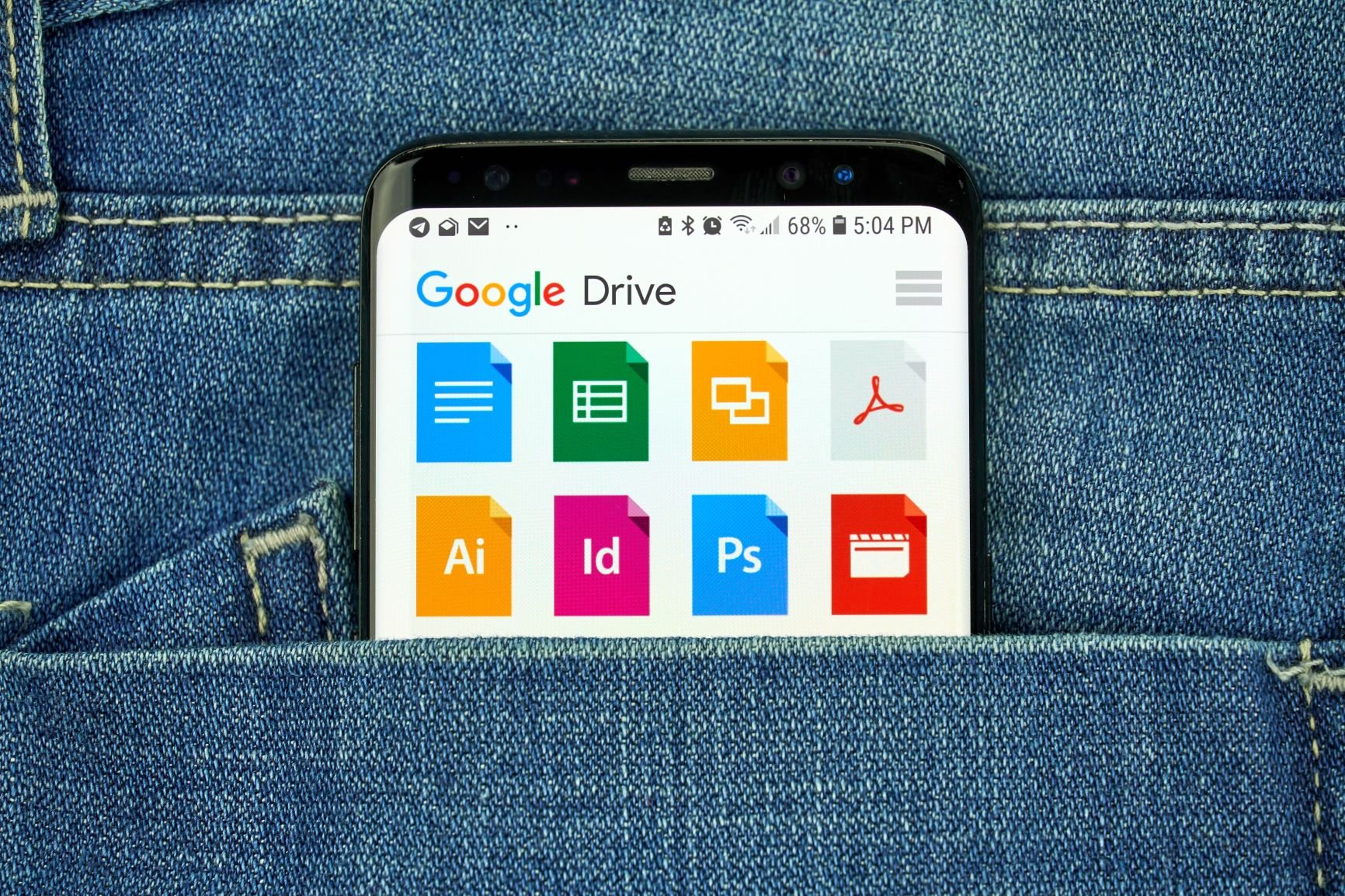
Even though it is a personal storage space, Google Drive can be used collaboratively on entire folders or individual files, with fairly straightforward access rights management (view, comment, edit, download permissions, etc.).
How to share a file or a folder?
With Google Drive, sharing a file is a breeze. Just click or press the Share option and enter the email address of the person or group with whom you want to share this document. You can also add multiple email addresses to share with specific contacts.
Next, choose the role for that contact or contacts: Viewer, Commenter, or Editor. The first can only view the document, the second can add comments, and the third can modify it freely. An editor can also change permissions and share documents.
Additionally, you can create a general access link to a file, open to anyone with the link. This is an identity-free access, so be sure to assign the correct role to this group: Viewer, Commenter, or Editor. Then copy the link to share.
Sharing a folder works the same way. The difference is in the amount of information shared: here, the entire contents of the directory are shared, including all documents stored there.
How to make a file public?
You can publish documents and make them public via a shareable link; anyone with the link will be able to view the document, and depending on the permissions attached to the link, they may add comments, edit, or download.
Google recommends creating a Web page if a document must be viewed by more than 100 people simultaneously. Therefore, from Google’s office suite applications (Docs, Sheets, Slides), choose the “Publish to the web” option in the File menu. Likewise, share the generated link to grant access to other users.
How Google Drive integrates with work tools?
In two words: exceptionally well. We cannot detail here every procedure to connect your Google Drive storage to your everyday work tools, whether on Windows PCs or professional apps like Slack or Pennylane. We can simply confirm Google’s solution is highly compatible with widely used business tools.
Firms can also opt for Google Workspace, which bundles Google’s office tools with other applications, such as Meet for video conferencing or Calendar for scheduling, to create a collaborative space for colleagues.
Media handling
Google Drive can host various media. You can store your photos and videos there and view or download them directly from your online storage space. However, it isn’t Google’s default app for handling these kinds of files; you should turn to Photos for that.
The different Google One offers
Before diving into Google One’s three plans that grant at least 100 GB of storage with Drive, remember that every Google account comes with 15 GB of cloud storage for free. If this online space is insufficient, you should consider upgrading and look at the subscriptions offered by the American giant to increase your size and stop feeling cramped.
Premium subscriptions
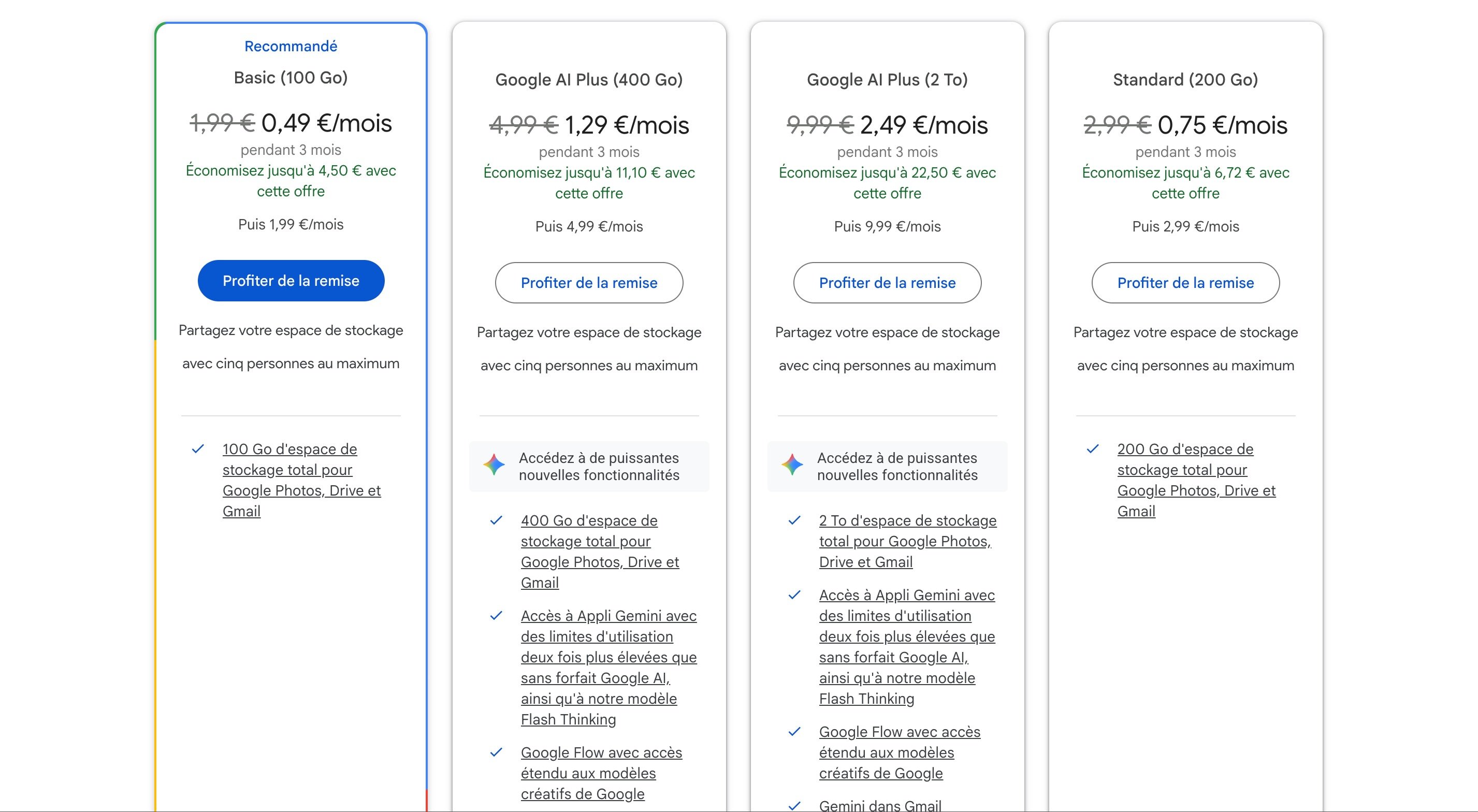
The most affordable plan Google offers to expand storage is the Basic plan, at 0.49 €/month for the first 3 months, then 1.99 €/month, granting a 100 GB cloud (shared with Gmail, Drive, and Photos). The plan can be shared with up to 5 other members, i.e. up to 6 people total, without extra charges. There is also a Standard plan at 0.75 €/month for 3 months, then 2.99 €/month for 200 GB of storage.
If this space is not enough, you can upgrade to Google AI Plus, priced at 1.29 €/month for 3 months then 4.99 €/month, for 400 GB of cloud storage (shared with Gmail, Drive, and Photos) plus a host of AI features (Gemini, Veo, NotebookLM, notably). Again, sharing is possible with up to 5 users. If you’re seeking more AI credits, there is also the AI Plus plan for 2 TB at 2.49 €/month for 3 months then 9.99 €/month for 2 TB of storage.
Google Drive paid offers vs. the competition
To place Google One’s prices in the cloud storage landscape, here’s a comparison with major paid offers on the market:
| Service | 100 GB | 200 GB | 1 TB / 2 TB | Family sharing |
| Google One | 1.99 €/mois | 2.99 €/mois | 9.99 €/mois (2 To) | Yes (5 people) |
| Microsoft OneDrive | 2 €/mois (+ MS 365) | — | 10 €/mois (1 To + MS 365) | Yes (6 people) |
| Apple iCloud+ | 0.99 €/mois (50 Go) | 2.99 €/mois | 9.99 €/mois (2 To) | Yes (5 people) |
| Dropbox Plus | — | — | 9.99 €/mois (2 To) | No |
| Proton Drive | — | 3.99 €/mois | 9.99 €/mois (500 Go) | Yes (6 people, with Family plan) |
| pCloud | — | — | 9.99 €/mois (2 To) | No |
Pricing for Google One is competitive in the 2 To segment, especially compared with Dropbox. For users already within Google’s ecosystem, the absence of extra charges for access to office tools (Docs, Sheets, Slides) represents a real economic advantage over Microsoft 365.
Who can access Gemini in Drive?
To use Gemini in Drive, you must have a Google Workspace plan (Standard, Plus, or Enterprise) or a Google One plan that is eligible:
- Free plan (5 to 15 GB): no Gemini in Drive.
- Basic 100 GB (1.99 €/mois): no Gemini features. This plan only covers extra storage.
- Google Standard 200 GB (2.99 €/mois): no Gemini features.
- Google AI Plus 400 GB (4.99 €/mois): access to Gemini in the dedicated app and in Gmail. Extended access to Gemini Notebook.
- Google AI Plus 2 To (9.99 €/mois): access to Gemini in the dedicated app and in Gmail. Extended access to Gemini Notebook.
Security and data privacy
Security is a core component of Google’s products, including its storage tools like Google Drive and Google Photos, to keep your documents and other files private and confidential. You can also find Google Drive in our comparison of the best secure online storage services.
Server locations
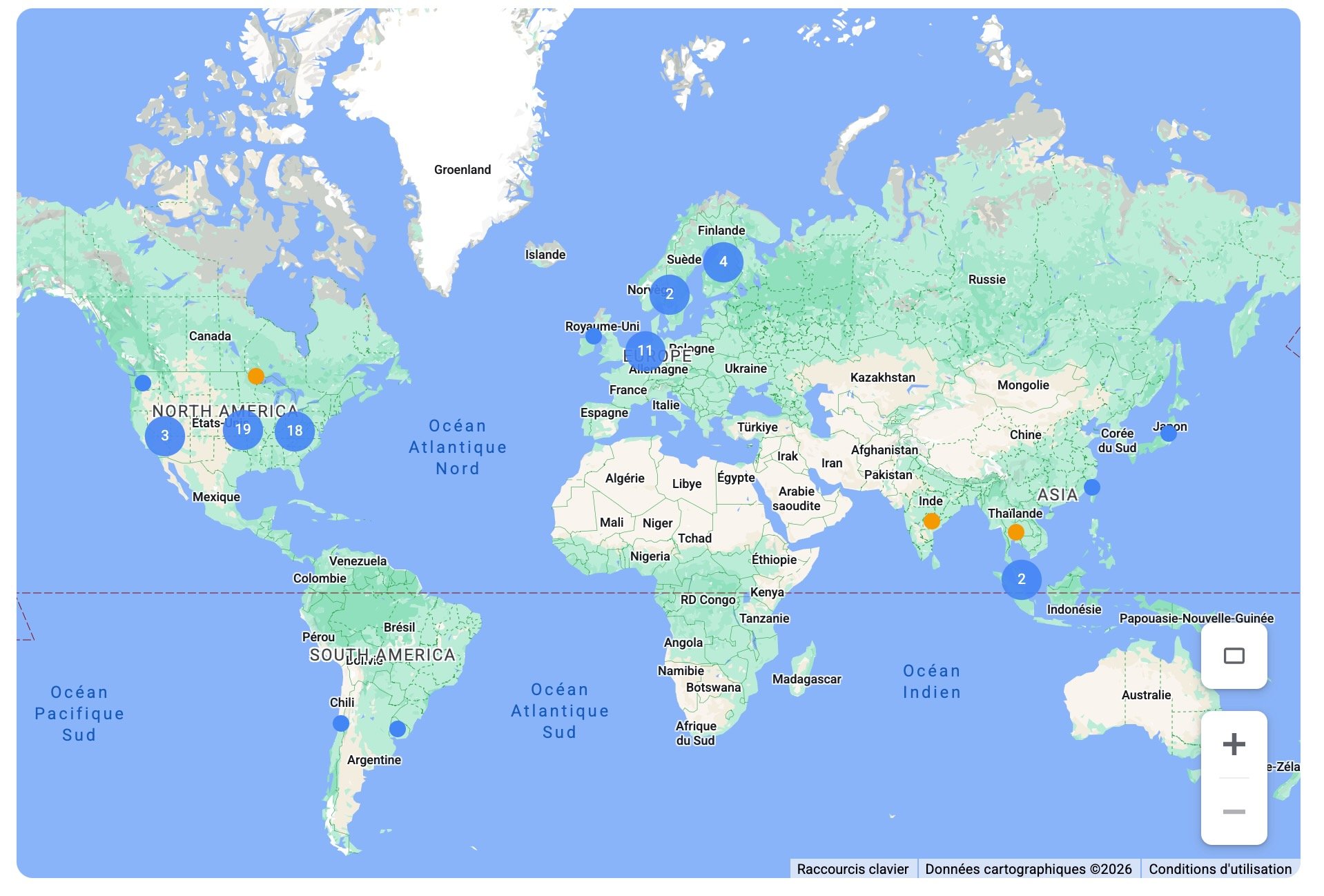
Google owns and operates its own data centers to run its services 24/7. According to its official page, it claims 30 active locations spread across 11 countries. Most are in the United States, but there are nine in Europe (Ireland, the Netherlands, Belgium, Denmark, Finland, Germany, the United Kingdom), as well as in Asia and South America. None are located in France, and individuals cannot choose the country where their Drive files are stored.
Two-factor authentication
To protect your Google account and the data linked to it, including your Google Drive files, Google offers two-factor authentication. Two-step verification adds an extra level of security; if your password is stolen, your account remains protected by the second authentication factor—the notification on your smartphone.
Once you enable two-step verification, you will need to complete a second step when signing in from a new device: first enter your password, then approve the login via a push notification on your smartphone.
Data encryption and encrypted files
Encryption is a technology that encodes the information in a document to protect its data. All files uploaded to Drive or created in Docs are automatically encrypted according to the AES 256-bit standard. For businesses and Google One subscribers, it is possible to strengthen this privacy by enabling client-side encryption for Workspace.
However, this higher level of protection comes with some limits, such as only one person at a time being able to modify, or that automatic backups run every five minutes. It is not possible to add comments or use certain built-in tools like spell check, grammar check, translation, or document comparison.
Our verdict: solid security, but limited privacy
Google Drive relies on a solid security infrastructure: files are AES-256 encrypted at rest and in transit (TLS), and Google data centers are certified under several international standards, including ISO 27001, as part of its professional Workspace offering. These measures effectively protect your data from interception or hardware theft. The main risk remains account hacking: hence the importance of enabling two-factor authentication.
The fundamental limit is of a different nature: Google holds the encryption keys to your files. In the absence of end-to-end encryption (E2E), Google can theoretically access the content of your data, for example for advertising systems or under legal orders. This situation is clearly documented in the service’s terms of use.
For users handling highly sensitive data (medical data, legal information, confidential business data), this limitation is a deal-breaker. Alternatives such as Proton Drive (default E2E encryption) or Tresorit offer stronger privacy guarantees, albeit with a less rich integration and a less fluid user experience.
Support and user assistance
Google Drive, like other Google services, is a vast and feature-rich tool, which can be easy to get lost in. Fortunately, the user support is up to the task, though it can be confusing at times.
A very comprehensive FAQ
Google’s online support contains an FAQ broken down into help sections so you can find an answer to almost any question you might have. For even easier use, a search field lets you describe your problem and the page’s search engine will steer you to the most relevant answers.
Broadly, this FAQ covers getting started with Google Drive, using it on desktop, as well as storage, organization, and sharing of files with others. A section is also dedicated to troubleshooting, such as recovering a file or changing your storage plan.
How to contact user support?
If the help center’s sections are not sufficient, you can contact Google Support via the help forum (available in English, Spanish and Portuguese) in the Community tab.
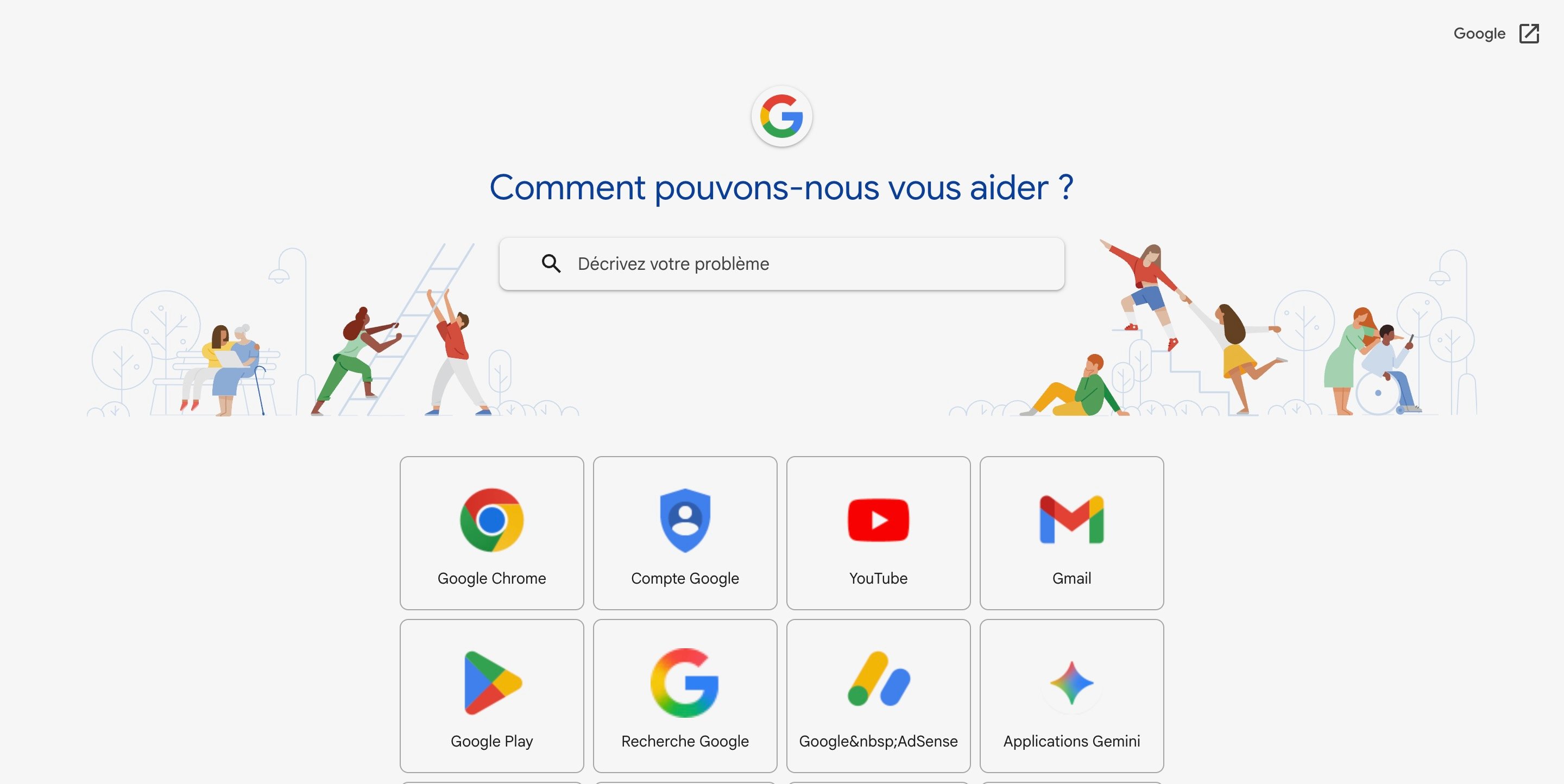
It is also possible to report a bug or technical issue to Google by selecting “Send feedback” from the top-left menu of the window.
Who is Google Drive for?
Google Drive isn’t suited to all profiles in the same way. Here is a synthesis to help you determine whether it fits your needs.
Individuals: an obvious choice
If you already have a Gmail account, which most Android users do, Google Drive is already active and ready to use on your device. For daily backup of personal photos, documents, or file sharing with loved ones, the free 15 GB is usually enough. Adding a Google One subscription at 1.99 €/month for 100 GB remains one of the market’s most affordable options.
Students: the ultimate collaborative suite
Google Drive, combined with Docs, Sheets, and Slides, is the benchmark collaborative suite in academia. The ability to work simultaneously on a single document, without installing software, and the service’s free nature make it a natural choice for group work and university projects.
Professionals and small businesses: versatile but limited on privacy
For professionals who work primarily within the Google ecosystem (Gmail, Calendar, Meet), Google Drive is the logical extension of their daily tools. Its integration with Slack, Salesforce, or other SaaS tools is well developed. However, professions with strict confidentiality obligations (lawyers, doctors, accountants) should carefully evaluate encryption and data location issues.
Large enterprises: Google Workspace dominates
For large teams, Google Workspace (formerly G Suite) includes Drive within a complete collaborative environment, with advanced rights management (Team Shared Drives), compliance (Vault for legal archiving), video conferencing (Meet), and centralized administration. The Business and Enterprise plans also add client-side encryption for organizations that require it.
Google Drive versus its competitors
The cloud storage market is dense. Here’s how Google Drive positions itself against its main rivals on the essential criteria.
| Criterion | Google Drive | OneDrive | Proton Drive | Dropbox |
| Free storage | 15 GB | 5 GB | 1 GB | 2 GB |
| Entry price | 1.99 €/mois (100 GB) | 2 €/mois (100 GB + MS 365) | 3.99 €/mois (200 GB) | 9.99 €/mois (2 To) |
| Office suite included | Yes (Workspace) | Yes (Office Online) | No | No |
| E2E encryption | No | No | Yes | No |
| Block-level sync | No | No | No | Yes |
| Linux client | No | No | Yes | Yes |
| Real-time collaboration | Excellent | Excellent | Basic | Basic |
| Third-party integrations | Many | Many | Limited | Many |
Google Drive shines in collaboration and integrations, but lags in privacy compared to Proton Drive and in advanced synchronization features compared to Dropbox. OneDrive remains the closest rival for Windows users or Microsoft 365 subscribers.
Conclusion
Google Drive brings together storage, organization, sharing, and synchronization in one space. It meets the needs of individuals as well as teams already using Google services who want to access their documents across multiple devices. Its main limitations concern the shared quota with Gmail and Google Photos, the absence of a Linux desktop client, and advanced features reserved for certain plans. The synchronization mode should also be distinguished from a true independent backup.
If you are curious about Gemini’s capabilities in Drive, you’ll need a Google Workspace plan (Standard, Plus, or Enterprise) or an eligible Google One plan.

Daniel Brooks
I cover everyday products with a practical eye, from kitchen tools and home essentials to smart gadgets and consumer trends. My goal is to help readers understand what is genuinely useful, what is worth the price, and what deserves a second look before buying.