
GrapheneOS has a reputation for being austere, complicated, and reserved for people who look over their shoulder three times before unlocking their smartphone. I therefore made it my main operating system for fifteen days to see what it’s really like.
GrapheneOS had been catching my eye for a while. I had even started thinking a guide for installing it would be a good idea, before Guillaume, though unofficial Apple ambassador at the editorial desk, got his hands on a test Pixel and cut the ground from under my feet.
Very well. Since he had taken the installation, I’d take it from there. So I grabbed a Pixel of my own and spent two weeks with GrapheneOS, to see what this ultra-secure Android looks like when faced with real life—WhatsApp, Spotify, Netflix, banking apps, and all those digital habits we don’t willingly shed as easily as an operating system. Spoiler: it’s much less intimidating, and far less radical, than you might think.
An Astonishingly Simple Setup to De-Googlify Google
First prerequisite, then: GrapheneOS cannot be installed on just any Android smartphone. It requires a compatible Google Pixel, so there’s no question of reusing an old model lying at the back of a drawer.
My first instinct was to grab my sister’s Pixel 5. Bad idea: at minimum you need a Pixel 6, 6 Pro, or 6a, or a newer generation. And above all, a model that allows OEM unlocking, otherwise your GrapheneOS project could end up at warranty service. Fortunately for me, the sales had just started, and I perhaps needed a new phone.
Once this detail was settled, we could dive into the core. A USB-C cable, an Internet connection, a compatible browser, the official Web Installer open in a tab, and off we go on what, at least in the public imagination, resembles a mini Android surgical procedure.
In reality, everything is well explained, everything is tightly guided. You still must enable OEM unlocking, reboot the phone into the bootloader, and carry out a few steps that feel more like a tinkering ritual than a standard update, but it’s ultimately quite fast, painless, and almost disconcerting. That said, let’s not kid ourselves: even with practice, facing the bootloader screen still has its own moment of awe.
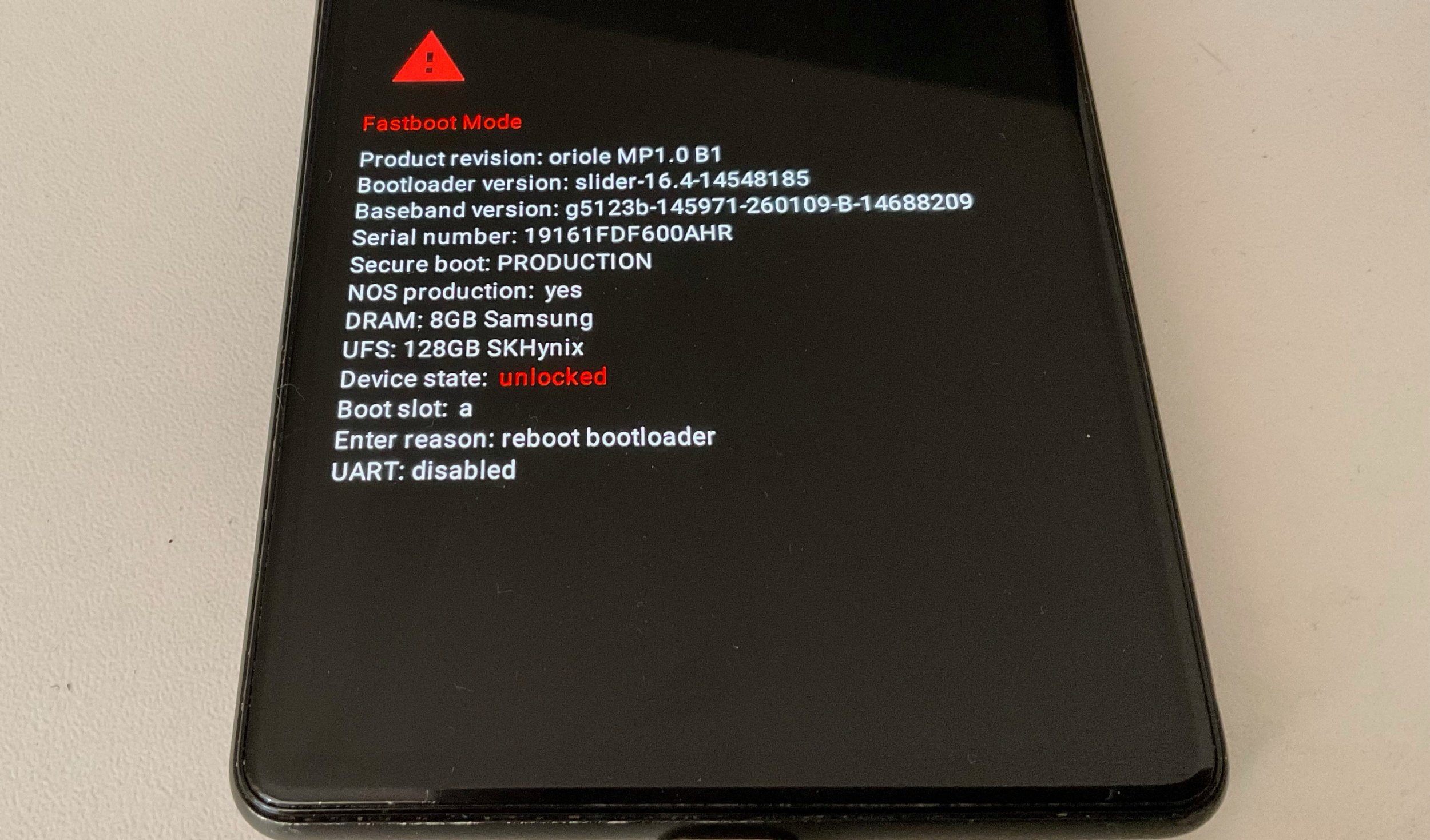
Then the Pixel restarts and shows GrapheneOS’s black-and-white logo instead of Google’s colorful G. It’s the small moment of pause unique to any OS installation: the steps seem to have gone as planned, but you still hold your breath until the home screen appears. A few seconds later, there it is. First surprise: it’s Android that welcomes me. And at the same time, not really.
Welcome to the Other Side of the Looking Glass
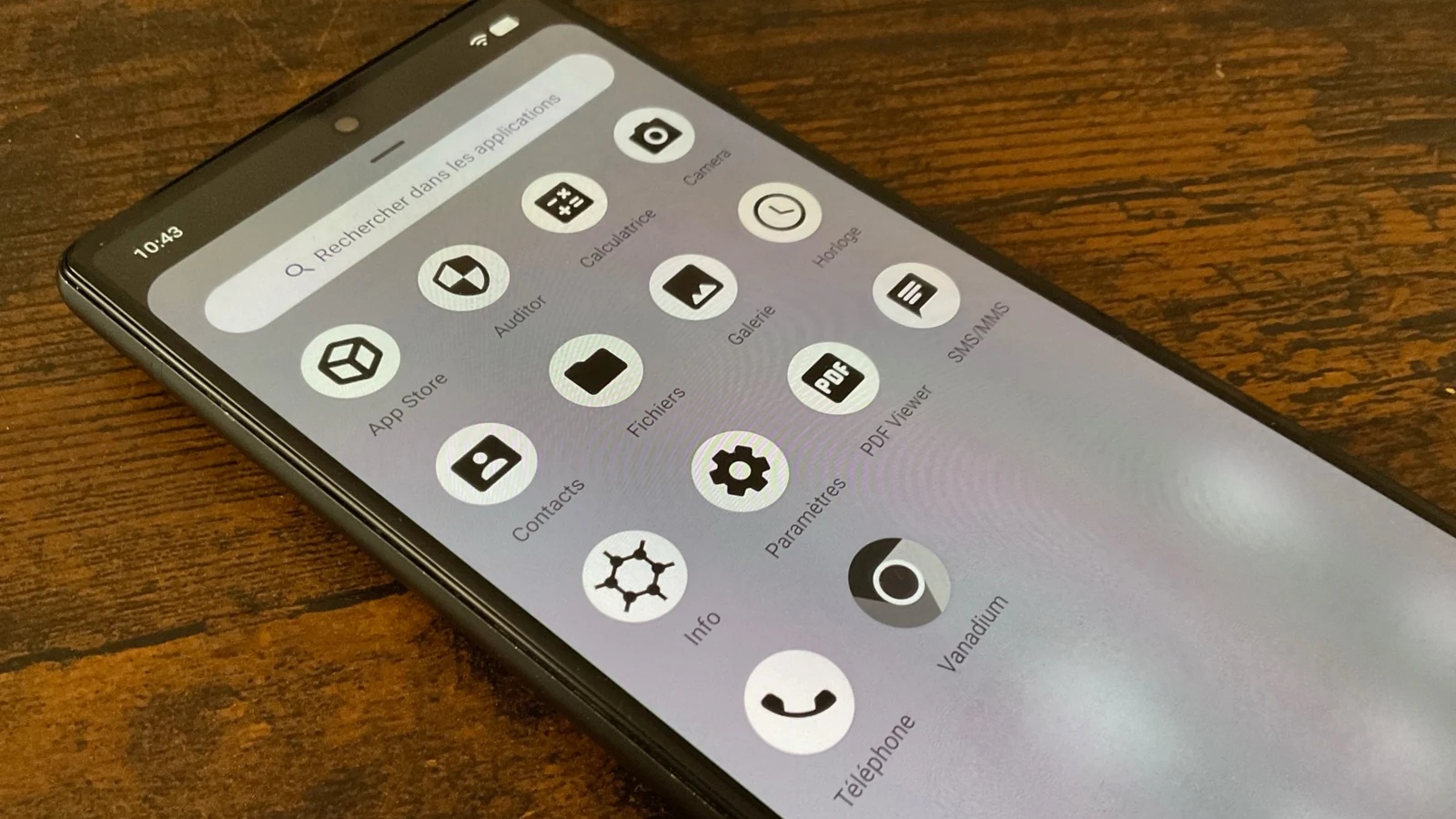
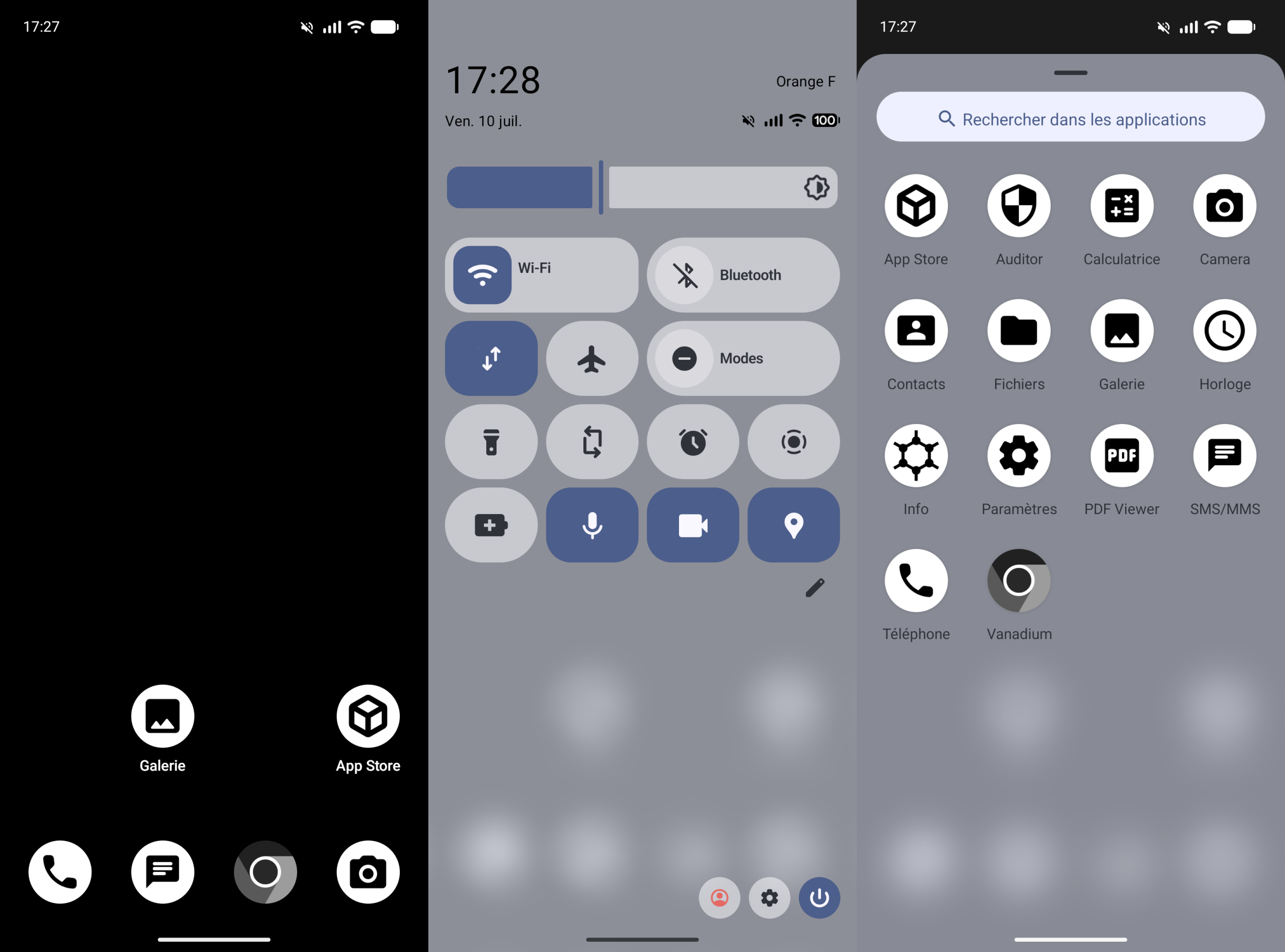
The first contact is visual. My usual wallpaper is purple, leaning toward pink, inherited from an old Samsung S10. So when GrapheneOS greets me with a black wallpaper, muted-gray icons, and a sobriety almost monastic, the contrast is striking. I know this mode already exists in the stock OS version, but since I don’t use it, it feels like stepping into Android’s Upside Down. It’s the same world, but not quite the same vibe.
I also know GrapheneOS won’t ask me for my Google account at first boot. That’s almost the point. But between knowing and facing an Android that doesn’t immediately try to restore apps, photos, settings, and old habits, there is still a small difference. The phone starts almost empty, and that emptiness is part of the experience.
Almost empty, but not barren either. GrapheneOS ships with a small set of basic apps: Phone, Messages, Contacts, Files, Gallery, Clock, Calculator, Camera, PDF Reader, as well as Vanadium, the built-in browser configured with DuckDuckGo as the default search engine. There’s also Auditor, an app that speaks another language—the language of attestations, integrity checks, and a phone you can control rather than merely use.
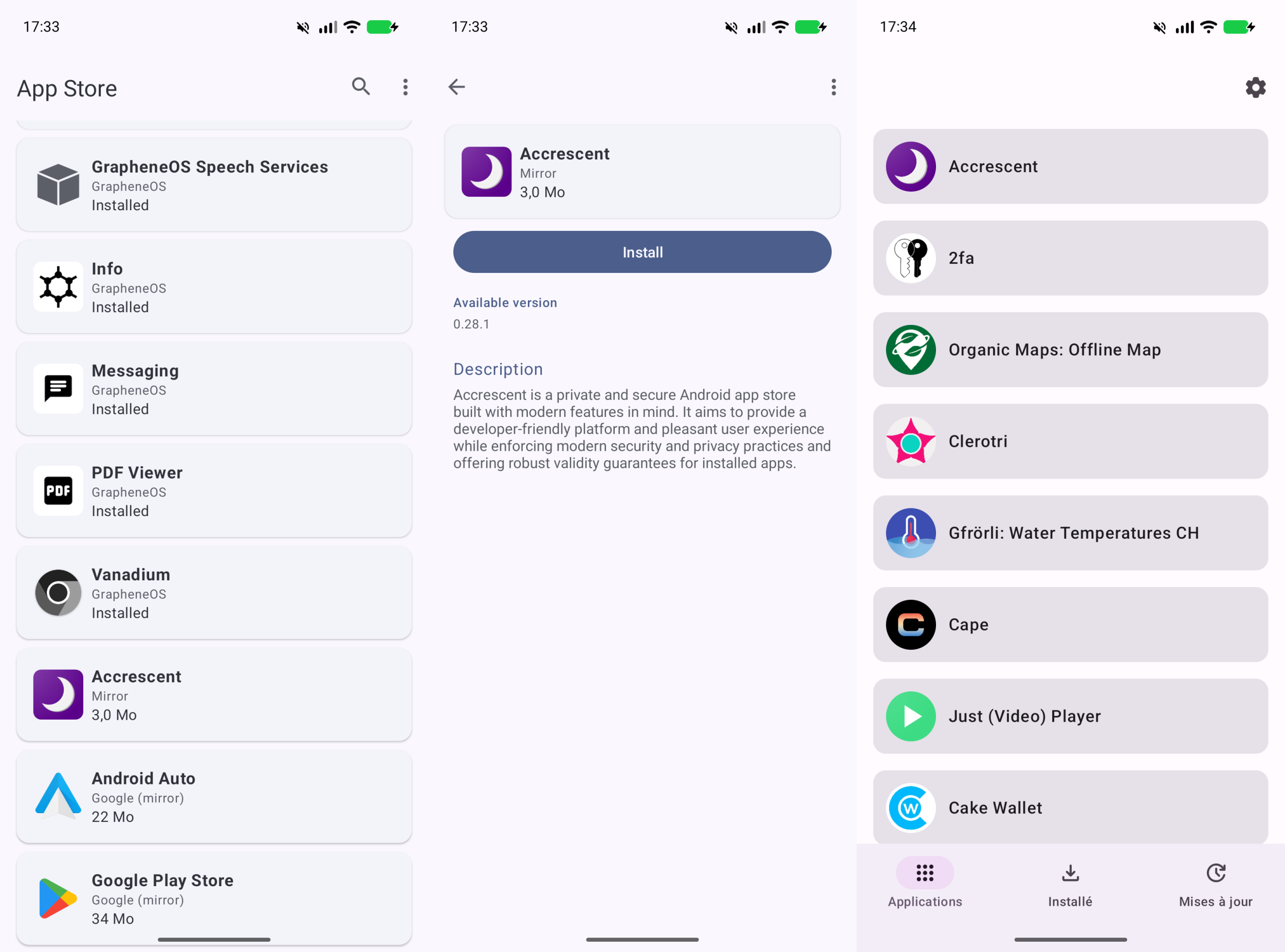
And then, there is the App Store. Finally, App Store, is that really a fair description? On first launch, I naturally expect to be able to search for all my usual apps, or at least a good portion. In reality, there isn’t even a search bar. Everything available is listed on the same page: GrapheneOS apps, but also Android Auto, Markup, the Play Store, and Google Play services to install yourself if you decide to stay loyal. It isn’t a general store, but rather a limited app center.
A little disorienting, I end up installing Accrescent, another name unknown to the crowd, accessible from this App Store. Its purple icon stands out against the rest of the interface. This time, indeed, we have an app store, but once again, the catalog is tiny. I found fewer than forty apps, with a rather unlikely mix: tools that align well with GrapheneOS, such as a 2FA app, Cryptomator, IVPN or Molly, a Signal-compatible client, but also a Bible and an app to check the temperature of Swiss lakes and rivers. Fair enough.
Reminding Google, Without Handing It the Keys
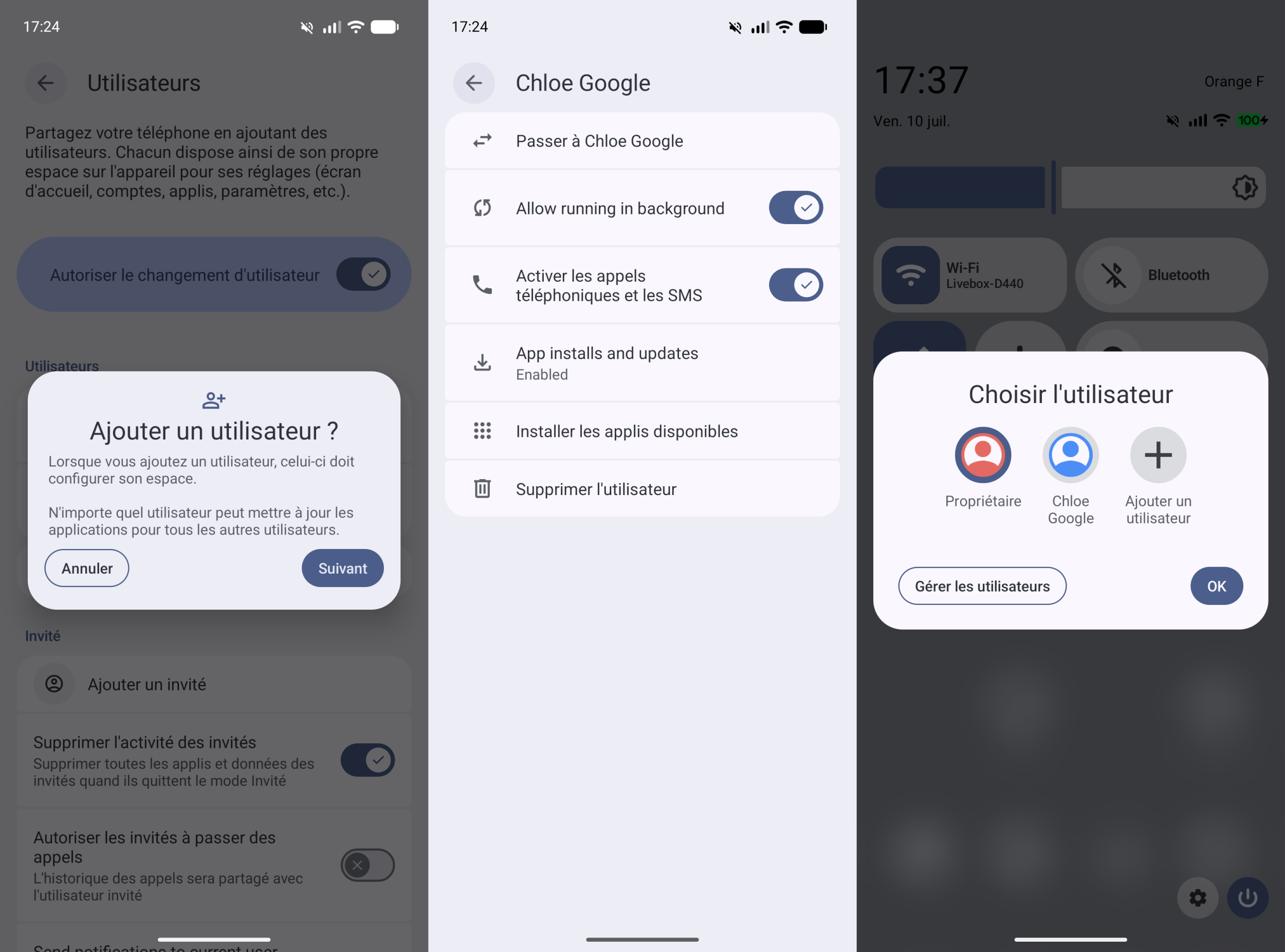
I could keep poking around, but I already know what awaits: if I want to regain a convenience close to that of my usual smartphone, and not reduce this Pixel to a few very specific uses, Accrescent won’t be enough. I’m faced with two options. Either I do what I would on any Android device and install the Play Store in my main profile, or I take advantage of GrapheneOS to do things a bit differently, by using a secondary profile.
The principle isn’t unique to GrapheneOS; Android already supports multiple user profiles. But here, the feature serves to compartmentalize Google. So I create a second profile, separate from my main space, to install the Play Store, sandboxed Google Play services, and the apps that need them. Everything I add stays in this isolated space, with its own accounts, its own data, and its own permissions. In return, I must manually switch profiles to access these apps, which isn’t always convenient. But that’s the price of this separation: if you want to silo your usage, you must accept that not everything is available in the same place.
And the other Android stores?
Accrescent isn’t the only option for installing apps without going through the Play Store. On GrapheneOS, nothing prevents using other sources, such as F-Droid, Aurora Store, Obtainium, or APKs provided directly by developers. It’s one of Android’s advantages: you aren’t locked into a single storefront.
But these options don’t all serve the same need. F-Droid emphasizes free and open-source apps, Aurora Store lets you access the Play Store catalog without using Google’s official app, Obtainium tracks versions released by developers on their own channels, and direct APKs require you to trust the distributing source. You can find many apps without turning to Google, but you must be prepared to choose your channels, verify sources, and sometimes manage updates more manually.
For this hands-on, I wasn’t aiming for a perfect Google-free Android right away. I mainly wanted to know whether GrapheneOS could replace my usual Android right now, with room to refine habits and app sources later.
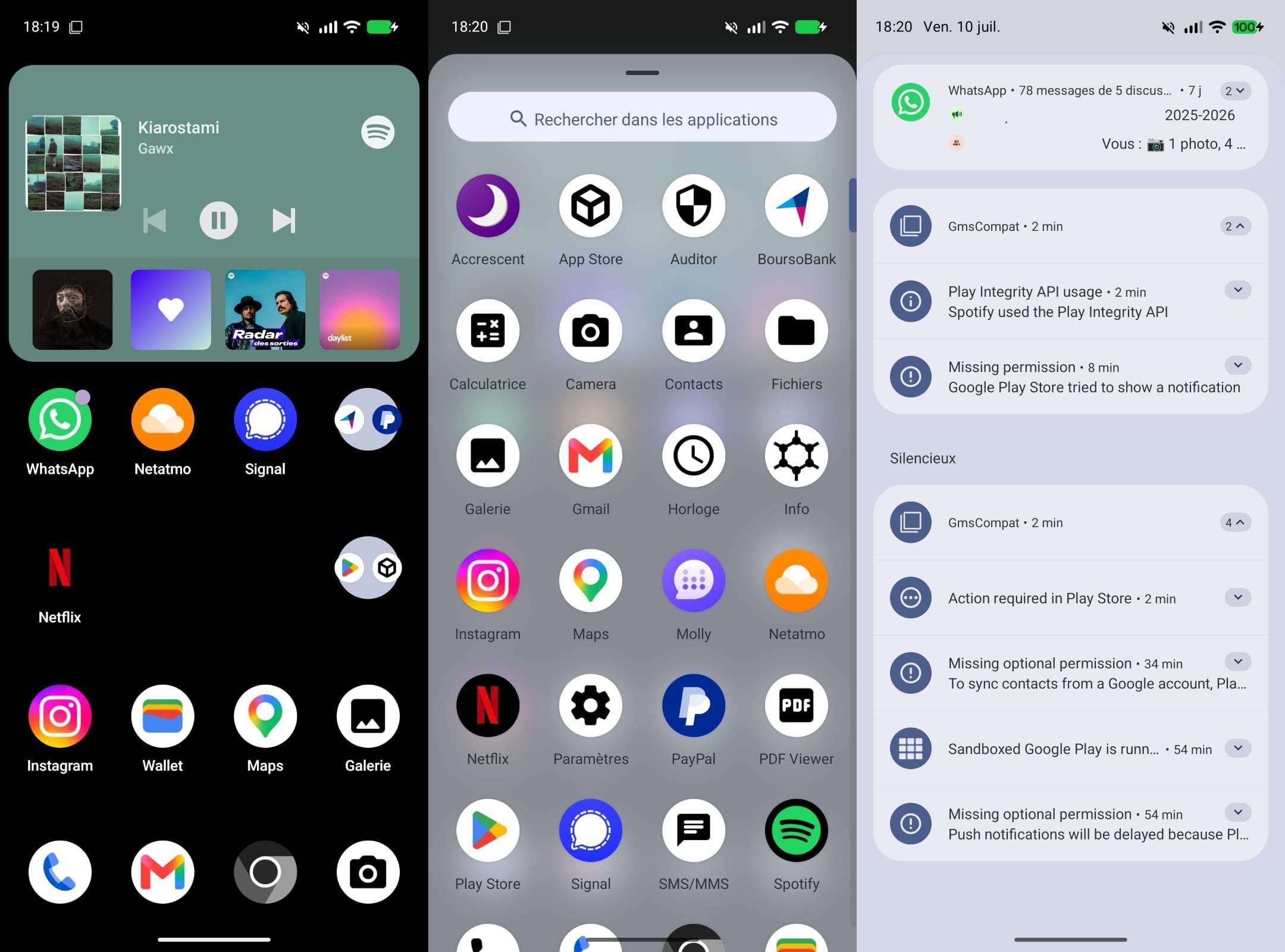
In practice, returning to the Play Store brings back a large portion of my familiar footing. WhatsApp, Signal, Instagram, Spotify: apps install, launch, and work as expected. Notifications arrive as well, though their content is hidden by default on the lock screen. So far, GrapheneOS hasn’t felt like turning Android into a minefield. Even Netflix, which I expected to balk due to DRM and device certification, starts without a hitch.
I do hit the limits I anticipated, namely payments and banking. Google Wallet won’t even finish launching on my device: a white screen. The problem isn’t NFC—which GrapheneOS handles well—but Google’s wallet blocks on uncertified systems. BoursoBank shows the same issue, refusing to connect to my account because it can’t verify the device’s integrity.
Note that there are alternatives for contactless payments, such as Curve Pay. But that means bringing in a new intermediary, checking your card compatibility, and accepting that mobile payments leave the very curated comfort of Google Wallet. For my part, I dropped the ball, and in hindsight this concession doesn’t seem so absurd. GrapheneOS already pushes you to compartmentalize usage, and sometimes compartmentalization also means realizing that not everything needs to go through your smartphone. In short, now when I go to the supermarket, I take my card.
Permissions Granted One by One
For a standard hands-on, I could have stopped there. But with GrapheneOS, the most interesting isn’t always what jumps out at you. First peculiarity: as soon as you install an app, the system asks whether it may access the network.
You’ll agree that this question isn’t usually posed so bluntly. For WhatsApp, Signal, or Spotify, there’s no suspense. Of course they need Internet. For a PDF reader or a game meant to work offline, you hesitate a little more.
GrapheneOS doesn’t decide for you, but it does something perhaps more interesting: it forces you to pause for two seconds and notice what’s happening. Subtly, it changes the rather passive relationship we typically have with our phones, the one that nudges us to blindly rely on the entire Android ecosystem (do you really read all the default permissions granted to apps you install?).
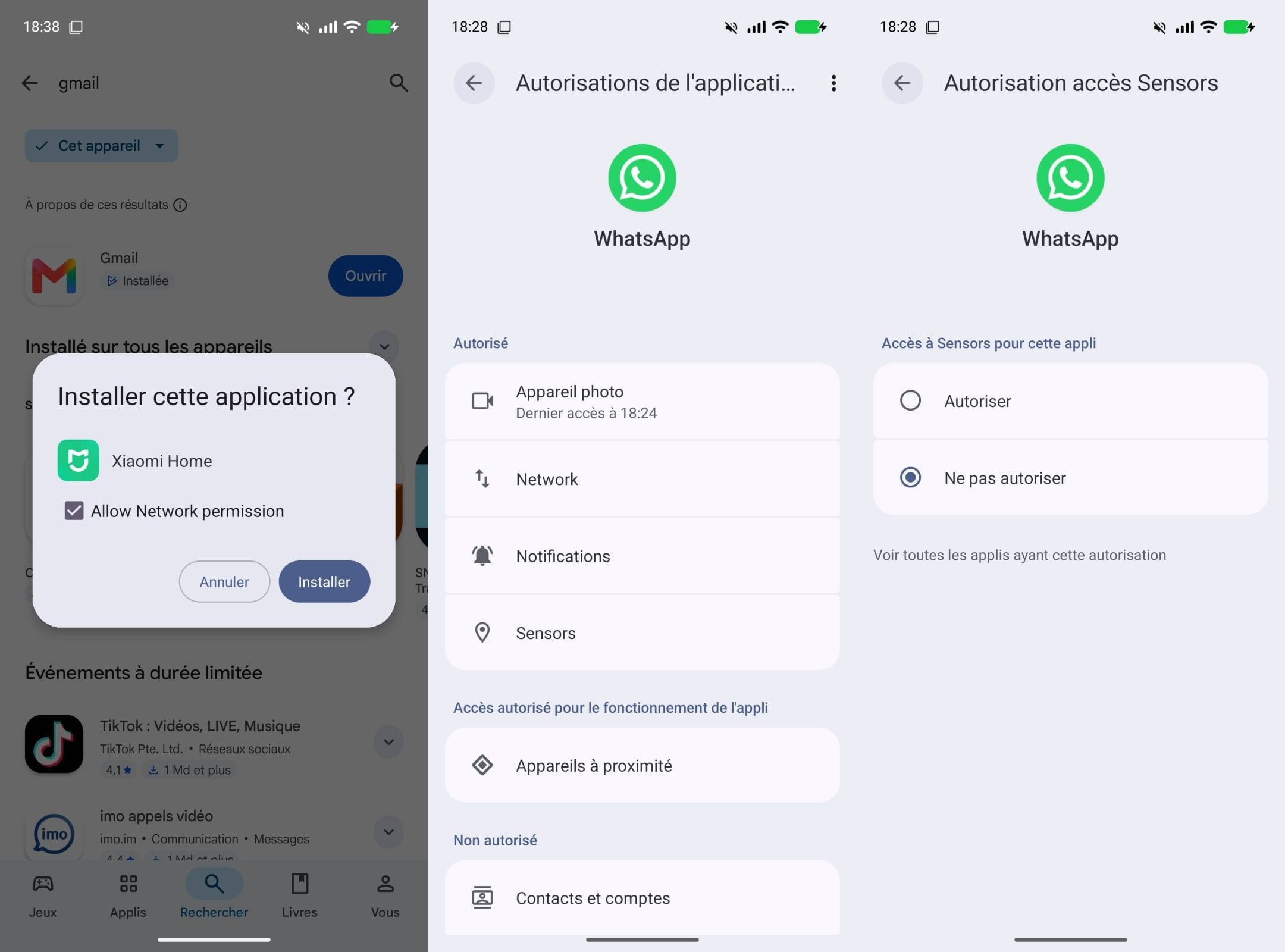
Continuing to inspect the permissions, I also notice GrapheneOS allows disabling access to the phone’s sensors (accelerometer, gyroscope, compass, barometer, etc.). So many data points that an app could typically access without prompting as explicitly as for the camera or microphone. Here they’re grouped behind a “Sensors” permission, which can be revoked case by case.
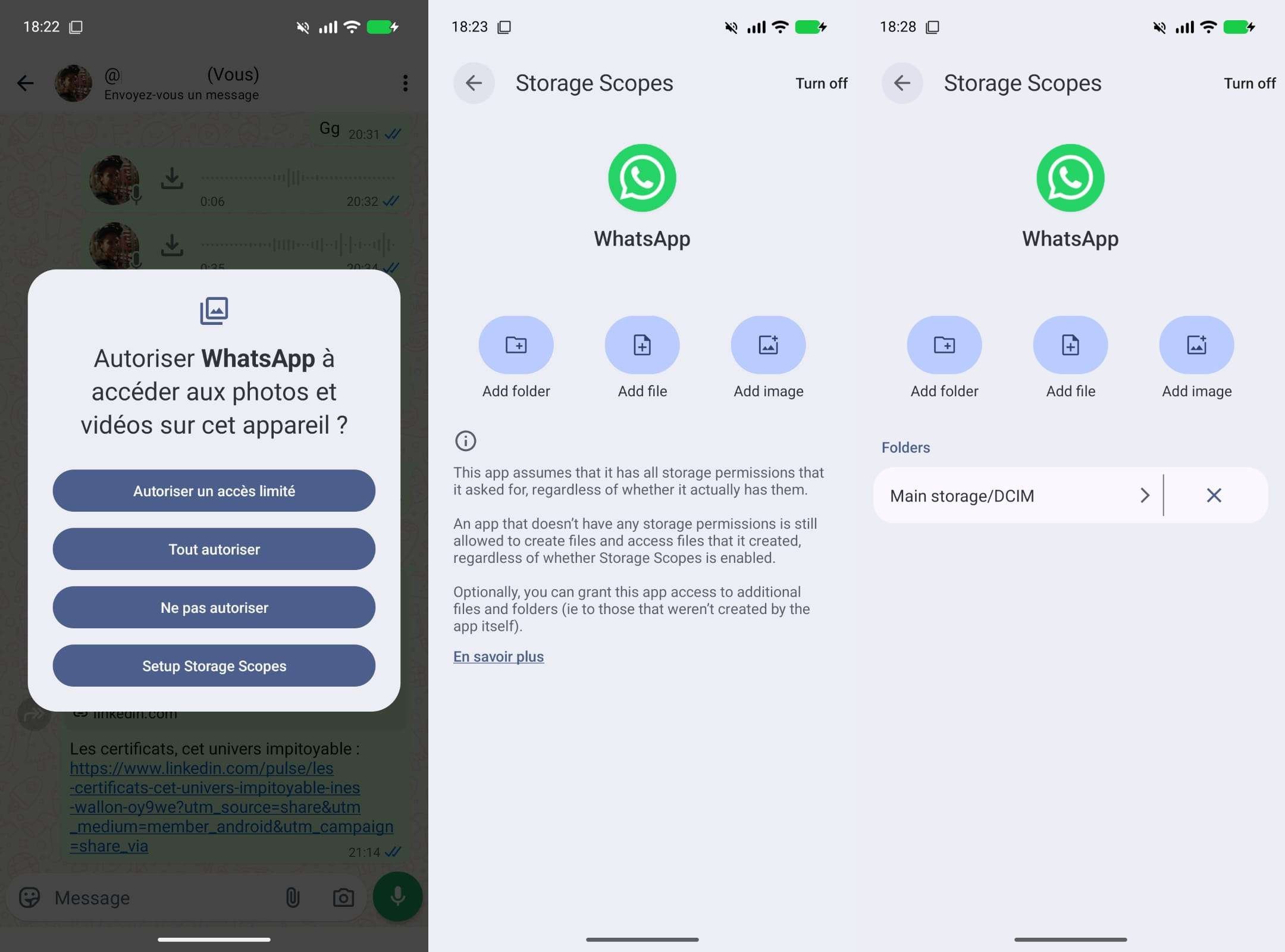
I also discover that it’s possible not to expose all my data in bulk to apps that request them. Android already supports photo-level sharing, letting you choose which ones to share. GrapheneOS extends this logic to the address book and storage.
With “Contact Scopes,” I can show WhatsApp only the people I actually plan to exchange with, instead of giving it access to all the numbers in my family, my doctor, and everyone who has ever touched my address book in twenty years. The “Storage Scopes” apply the same logic to files and folders: the app can be granted access, but its access is limited to the items I chose to open.
Under the Hood, Much More Than a Custom ROM
Before drawing a final line on this hands-on, I want to say a couple of words about what you don’t see, and which explains why GrapheneOS isn’t merely Android stripped of Google.
The system notably strengthens the sandbox already present in Android, that isolated space where each app is supposed to remain confined. If one were to be compromised, it would encounter extra protections before reaching data from other apps or attacking the rest of the system.
This separation is also reinforced right from launch. Android usually starts apps from a common template process to save time and memory. GrapheneOS instead creates a new process from scratch for each app. Cold startup may take a fraction of a second longer, but they share less information that could help an attacker, especially regarding memory layout.
Memory, precisely, is the subject of several hardening measures. When an app runs, it constantly asks for small spaces to temporarily store its data. The memory allocator finds these locations, assigns them to the app, and retrieves them when no longer needed.
If a bug slips into how the app uses those spaces, it can write past the allocated area or keep using a freed space. This is known as a buffer overflow or use-after-free. These flaws can crash an app, but they can also be exploited to access data or run code within the vulnerable app.
GrapheneOS uses its own allocator to better spot these mistakes and complicate their exploitation. On the Pixel 8 and newer generations, it adds memory hardware tagging: each region gets a tag that the processor compares with the pointer’s tag when an app tries to access it. A mismatched tag can reveal the use of memory that doesn’t belong to the app or that has already been freed, and halt the operation before it goes any further.
Finally, the system confines the code that apps attempt to load or generate during runtime. This can be legitimate, but it also allows an attacker to have code executed that wasn’t part of the originally controlled app. GrapheneOS can block such loading from memory or storage and flags when an app runs into this restriction. It can then be allowed on a case-by-case basis if it truly needs it.
Not Yet My Main OS, But No Longer Just a Test
So, GrapheneOS—the OS of ultra-cautious people who can swallow command lines at breakfast? Not really. The installation can intimidate the least tech-savvy, and I admit it took me a moment to understand what Accrescent could actually install. But once past that hurdle, compatibility with Google services makes everything run much more smoothly than one might expect. Most of my apps worked without sacrificing my habitual use in the name of privacy.
That said, I’m not making it my daily OS just yet. My digital life still depends far too much on Google, Microsoft, WhatsApp, and the entire crowd we’re trying to keep at a distance with GrapheneOS. I could, of course, reinstall everything and continue essentially as before, but choosing a system designed to strengthen privacy and security and then re-creating my old habits seems to miss the point a bit.
Now that I have two fully functional phones (remember, I did have to buy a second one), I’ll take advantage of this to push the transition gradually. GrapheneOS will thus remain, for now, on the second device. I can progressively move my usage there, test other solutions, and adjust what doesn’t fit, until this privacy-respecting environment welcomes healthier practices.

Daniel Brooks
I cover everyday products with a practical eye, from kitchen tools and home essentials to smart gadgets and consumer trends. My goal is to help readers understand what is genuinely useful, what is worth the price, and what deserves a second look before buying.